
Automations: everyday scenarios without a developer
An automation is a "when this happens, do that" rule: tag by keyword, assign a conversation to a team, create a deal, fire a webhook into your own system. Here is what a scenario is made of, which actions are available, and which safety rails keep you from burying a customer in messages.
What you need to know
- A scenario lives in the Automation section and has three parts: a trigger (when to run), conditions (who it applies to) and actions (what to do).
- A scenario has a status: draft, active, inactive, paused. While it is not active, triggers never start it — handy for assembling a scenario ahead of time.
- An automation is not the same as a company auto-reply. The auto-reply is one per company and has no conditions; an automation runs selectively and can change data, not just send text.
Start from a ready-made template
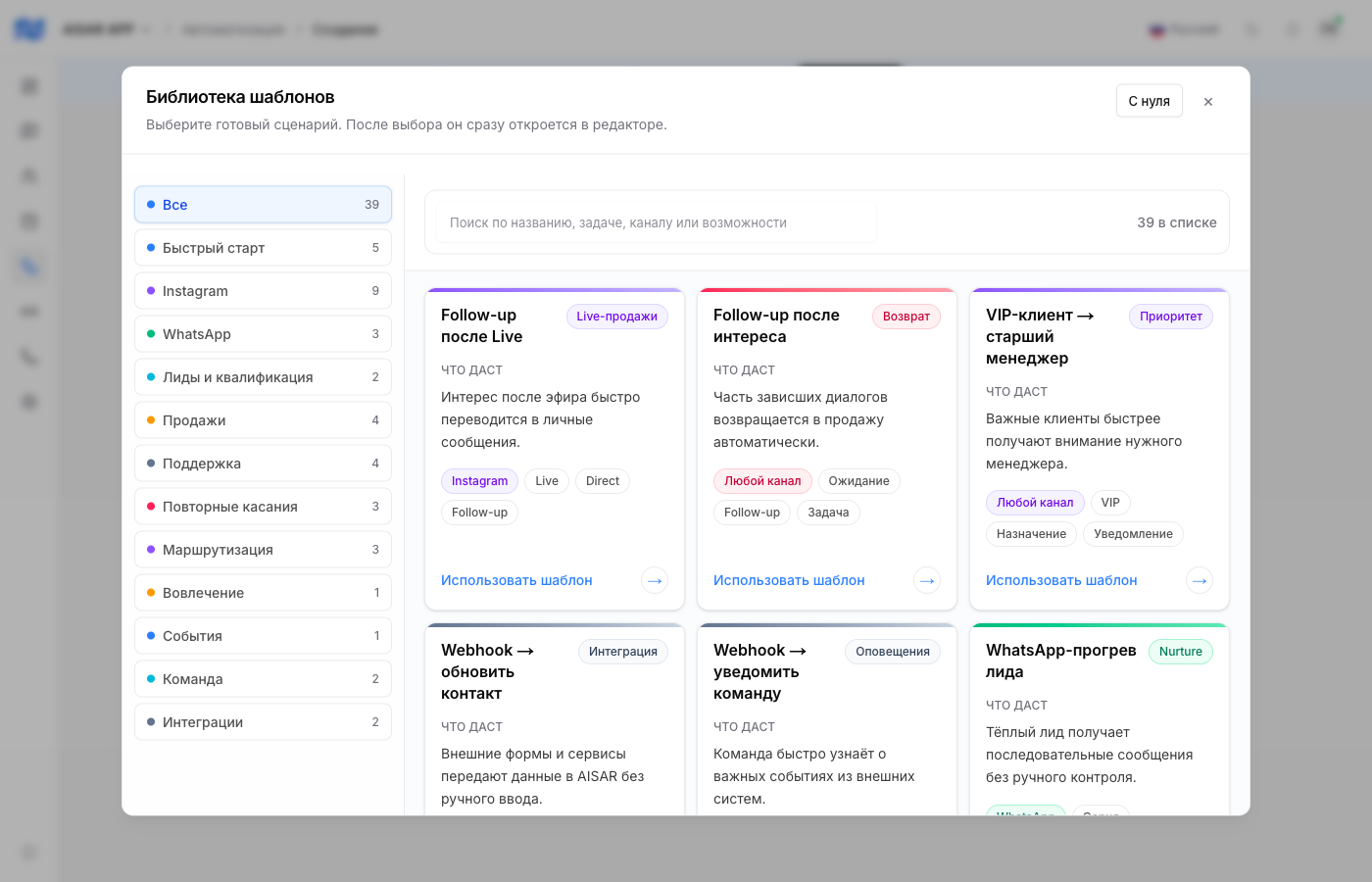
Building from scratch is worth it only when the library has nothing close. Creating an automation offers a library of ready-made templates grouped by job: quick start, leads and qualification, sales, support, re-engagement, routing, integrations. A template opens in the editor and you adjust the texts and conditions.
What starts a scenario
| Trigger | When it fires |
|---|---|
| Message | An inbound message arrived. Can be limited to specific connected channels — the trigger picker lists your own channels from Settings → Channels. |
| Conversation | A conversation event — for example the conversation opened or was closed. |
| Contact | A change on the contact card: a new contact appeared or a field changed. |
| Deal | A deal event — creation or a move between funnel stages. |
| Webhook | An external system called your endpoint — the scenario starts on an outside signal. |
| Schedule | On a timer, with no external event. |
Conditions refine the trigger: contains, does not contain, begins with, is, greater than, changed. That turns "a message" into "a message containing the word price" — and the scenario stops firing on everything.
What a scenario can do
| Group | Actions |
|---|---|
| Messages | Send a message to the right channel, send a WhatsApp Business template, send an attachment. |
| Contact | Add or remove a tag, change a card field, assign the contact owner. |
| Sales | Create a deal, move a deal to another funnel stage. |
| Team | Assign the conversation to a team, notify the team, create a task, add an internal note (invisible to the customer). |
| Integrations | Fire a webhook to an external system — your accounting system or your website backend, say. |
Three scenarios that pay off immediately
A keyword request goes to the right team
Trigger — inbound message. Condition — the text contains "invoice" or "payment". Actions — add the tag "Billing", assign the conversation to the billing team and notify it. The customer reaches the right people without being passed around.
A first enquiry becomes a deal
Trigger — a new contact. Actions — create a deal in the right funnel and tag it with the source. The funnel then runs as usual, but no enquiry is lost because a manager forgot to create a card.
An event reaches your own system
Trigger — a deal moved to the "Paid" stage. Action — fire a webhook to your endpoint. On your side that can raise a document, start a delivery, or write a row into your ERP.
Safety rails: not burying the customer
- Re-entry. While a run for this contact is still in flight, a second one will not start. You can also set a cooldown in hours during which the contact cannot re-enter the scenario.
- Frequency cap. A limit of the form "no more than N messages to one contact per X hours" per channel. It counts automation messages, not operator replies.
- Pause after an operator replies. Once a human writes in the conversation, automations there are suspended for a set time (30 minutes by default, a day at most). The setting is in Settings → Message automation → Chat behaviour; zero disables the pause.
- Quiet hours. A window in which automations do not message customers — with its own timezone, weekdays and channel list. The window may wrap past midnight: 22:00 to 08:00 is a single entry.
How not to break a live process
- Assemble the scenario and leave it a draft — while it is not active it does nothing.
- Narrow the conditions to a small case: one keyword, one channel. A broad condition at launch is the main reason an automation writes to the wrong people.
- Activate it and check on a real enquiry, looking at the scenario run history.
- Widen the conditions gradually. If something goes wrong, pause the scenario — it stops firing but stays assembled.
Common issues
| Symptom | Cause and what to do |
|---|---|
| The scenario never runs | Most often it is not active (draft or paused), or the condition does not match the real text — check the wording and casing of the keyword. |
| It fired on the wrong channel | The message trigger has a channel filter. An empty filter means "every channel". |
| The customer got no message from the scenario | Check quiet hours and the frequency cap: both hold the send back silently. For WhatsApp Business, mind the messaging window — outside it an approved template is required. |
| A contact does not enter the scenario a second time | Either the previous run is still in flight, or the re-entry cooldown has not elapsed. |
See also
The company-wide auto-reply and the schedule are in Working hours and auto-replies. Who picks a conversation up and how teams work is in Conversation assignment. Mass sending is in Broadcasts without a ban.