
Why a WABA template got rejected and what to do
Meta reviews every WhatsApp Business template before approving it, and can reject it, pause it, or disable it for quality. Here's how those statuses differ, where to see the actual rejection reason, and how to edit and resubmit a template.
What you need to know
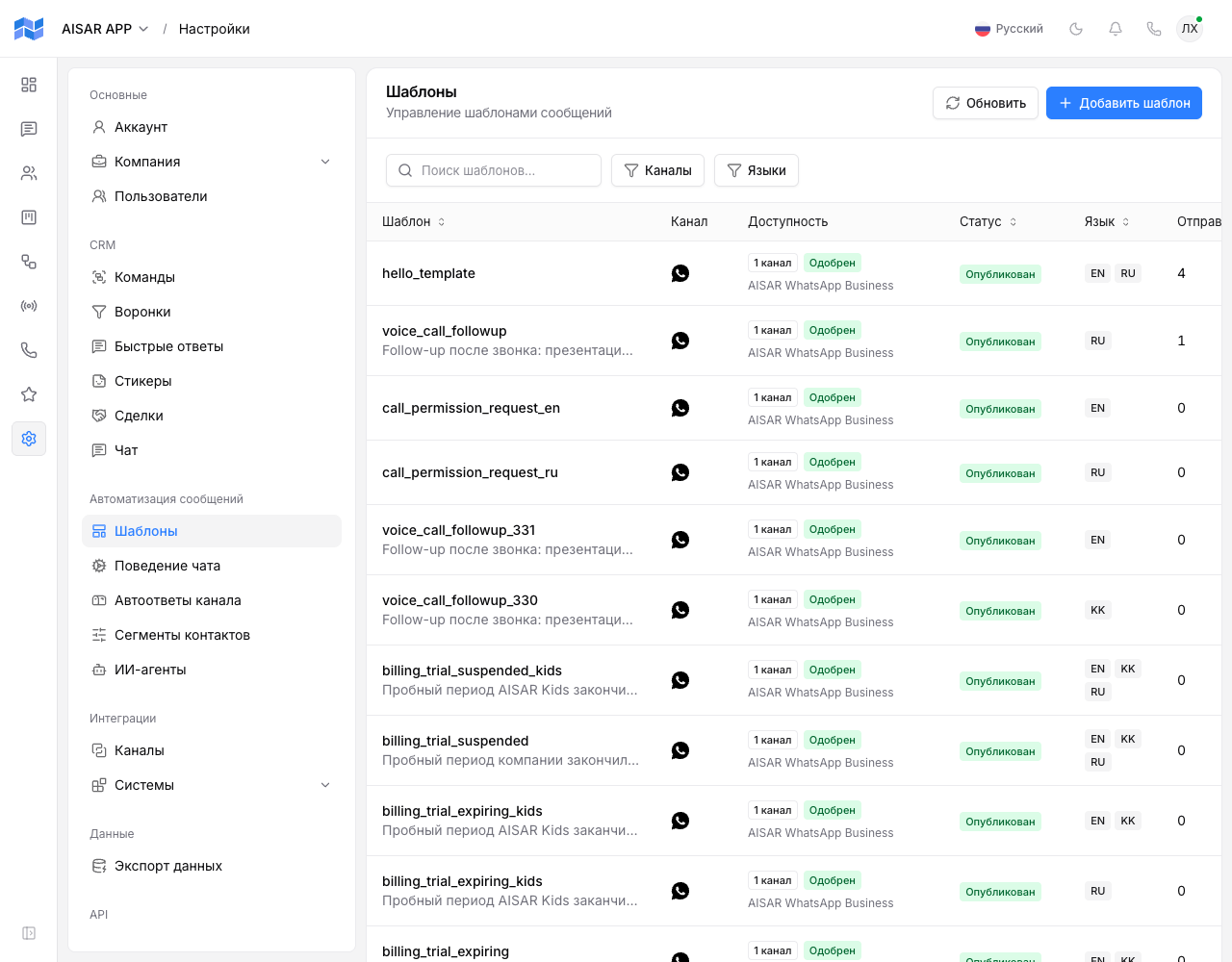
- Meta does the reviewing, not AISAR — AISAR only shows the status and reason Meta returned, and lets you edit the template and resend it.
- A WhatsApp Business template carries a separate Meta review status, independent of the template's own status (Draft/Published/Archived) in AISAR: Under review, Approved, Rejected — plus two states an already-approved template can fall into: paused and disabled for low quality.
Where to see the reason
In the template list (Settings → Templates), rejected, paused, or disabled templates show an explanation right under the Meta status badge — the exact message Meta returned, not a paraphrase. That is the fastest way to see the actual reason without going anywhere else.
Rejected, paused, or disabled — what is the difference
| Status | What it means |
|---|---|
| Rejected | The template failed initial review — it was never sent to customers before this decision. |
| Paused | The template was already approved and in use, but Meta temporarily paused it over a drop in quality (recipient complaints or blocks). |
| Disabled | "Paused" taken further — Meta disabled the template after repeated quality problems. Sending through it no longer works. |
Common rejection reasons
- The category doesn't match the content. Promotional text dressed up as "Utility" is one of the most common rejection reasons — pick "Marketing" if the message sells or promotes anything.
- The number or format of variables doesn't match what was approved — Meta checks both the count and the format of the
{{variables}}in the text. - The text exceeds the allowed length — the template body is capped at 1024 characters.
- A formatting-rule violation — excessive formatting, suspicious links, or prohibited content in the text, for example.
- The template isn't found or approved for the selected language — if that language version hasn't cleared its own review yet, sending through it fails separately, even if another language version of the same template is already approved.
What to do
- Open the template and read the reason shown under the status — it almost always points to the specific thing to fix.
- Edit the content: change the category if it doesn't fit the text, shorten the body, and check that every variable is named and has a sample value — see WABA templates: categories, creation, variables.
- Save the changes and resubmit the template for review — this is available for rejected, paused, disabled, and failed-to-submit templates, not just brand-new ones.
- If the template was paused or disabled over recipient complaints rather than the text itself, reconsider who it goes to and how often — see How to avoid a WhatsApp ban; the same conversation-quality principles apply here too.
Common issues
| Symptom | Cause and what to do |
|---|---|
| The rejection reason isn't shown or is unclear | AISAR shows exactly the text Meta returned — sometimes it is generic. Check the most common causes above: category, length, variables, formatting. |
| One language version is approved, another is rejected | Each language version goes through Meta's review independently — fix and resubmit only the rejected version. |
| The template was approved but stopped sending | Check the Meta status — if it switched to "Paused" or "Disabled", the cause is conversation quality through that template, not its content. |
| After edits and resubmission, the status sits on "Under review" for a while | That is normal — review usually takes 1-2 business days, same as the first submission. |
See also
For how template categories, fields, and variables work, see WABA templates: categories, creation, variables. For exactly when a template is required, see The WhatsApp Business 24-hour window: how it works.