
Connecting Instagram Business
Instagram Business connects through the official Instagram Messaging API — a direct Instagram sign-in, no QR scanning involved. Direct messages (DMs) and comments on posts and Reels land in AISAR, and any agent on the team can reply. Here's what you'll need and how to get through the setup.
What you'll need
- A business account or a creator account in Instagram — a plain personal account does not work for this integration; switch it in Instagram's own settings first.
- The login credentials for that Instagram account — authorization runs directly through Instagram, no separate Facebook sign-in step is required.
- Readiness to grant the messaging and comments permissions Instagram asks for during sign-in.
- Agreement to Meta's platform terms and Instagram's terms of use for this integration — the wizard's connect button stays disabled until this checkbox is ticked.
Where to find it
In my.aisar.app open Settings → Channels → Add channel, find the Instagram Business card in the catalog, and click Connect.
How to connect
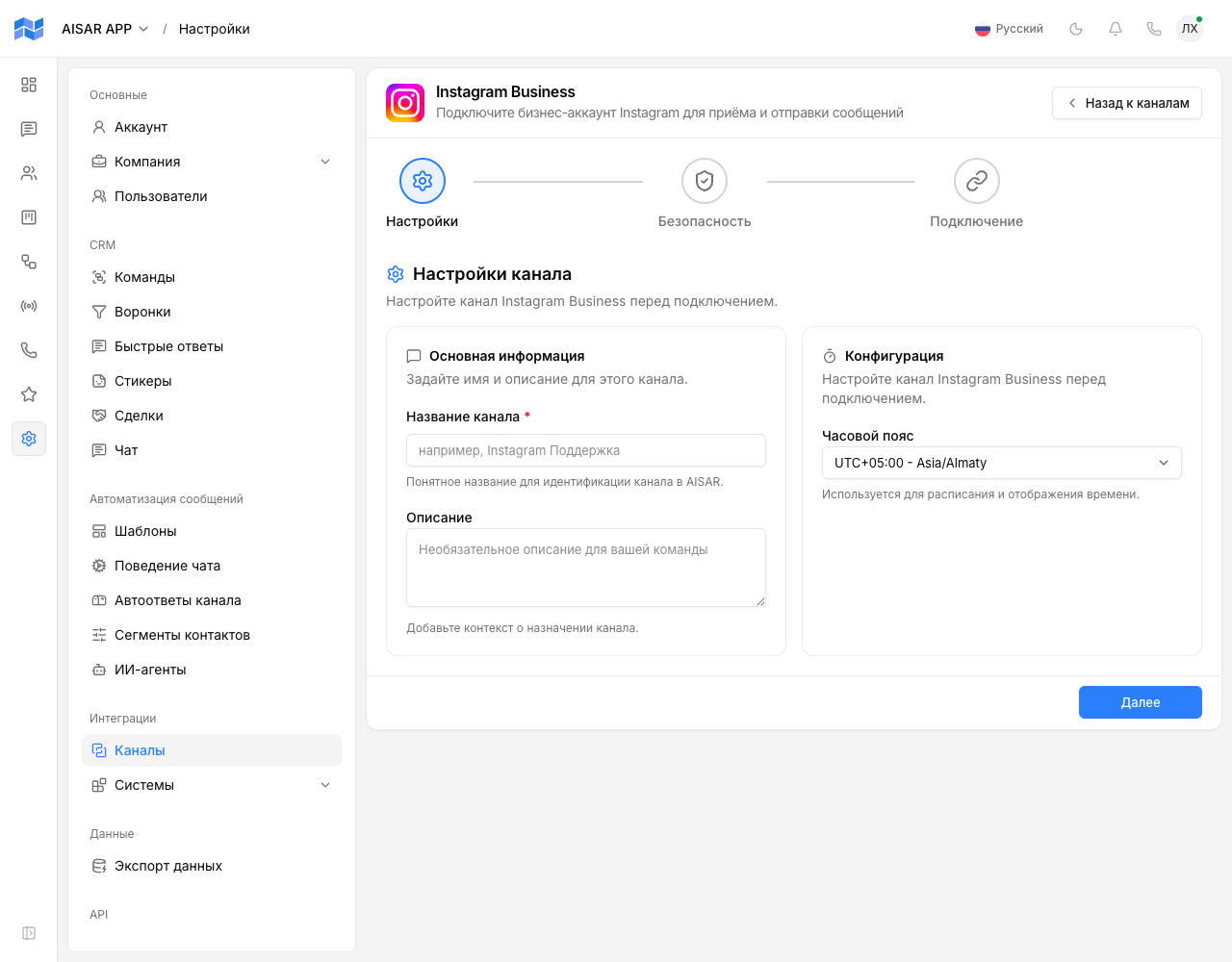
- Click Connect on the Instagram Business card — the wizard opens, with three steps: Settings, Security, Connect.
- On the Settings step, enter a Channel name (required), optionally a Description, and pick a Timezone.
- On the Security step, choose which teams can see this channel, and whether it allows broadcasts, automations, and inbound message handling.
- On the Connect step, tick the agreement with Meta and Instagram terms, then click Connect with Instagram.
- In the popup window that opens, sign in to the right Instagram account and grant the requested messaging and comments permissions.
- After authorization the window closes itself, and AISAR exchanges the code for a long-lived access token — the channel is created and switches to Connected status.
How to check the channel is working
In the channel list (Settings → Channels), Instagram Business shows the Connected status. Send a direct message (DM) to the connected Instagram account from another account, or leave a comment under a post — it should show up in AISAR's Chat section, and a reply sent from AISAR should reach the sender.
Common issues
| Symptom | Cause and what to do |
|---|---|
| The wizard won't let you continue, the account isn't eligible | This usually means it's a plain personal Instagram account. Switch it to a business account or a creator account in Instagram's own settings, then try again. |
| The authorization popup closed without a result | Check that your browser isn't blocking popups for my.aisar.app, and that you didn't close the window by hand before sign-in finished. Start the connection again. |
| The plan channel limit is reached when trying to connect Instagram Business | Your company's plan caps how many channels can be connected at once. Disconnect an unused channel, or raise the limit with an extra-channel add-on in Billing. |
| Some customer messages don't arrive long after the last conversation | The Instagram Messaging API limits the reply window the same way the WhatsApp Business API does — about 24 hours from the customer's last message. This is Instagram's own limit, not AISAR's. |
See also
Instagram Business connects the same way as WhatsApp Business (WABA) — a direct sign-in through the official API instead of a QR code. If customers also message a personal WhatsApp number, add it via Connecting WhatsApp. Other Meta channels with the same kind of sign-in: Facebook Messenger for messaging on behalf of a Facebook Page, and Threads for replies and mentions on Threads. Channel features and pricing are on aisar.app/en/channels/instagram.