
Connecting WhatsApp with a passkey
How to connect a WhatsApp number to AISAR when it's protected by a passkey: what a passkey is, what to prepare, and what to do at each step of the connect wizard.
What a passkey is
WhatsApp lets you protect your account with a passkey — a modern alternative to a password. Instead of an SMS code or a secret phrase, sign-in is confirmed with Face ID, a fingerprint, or your device's PIN, on whichever device already has WhatsApp set up.
If this protection is turned on for your number, WhatsApp will ask for passkey confirmation on any attempt to connect that number to a third-party service — not just AISAR. This is WhatsApp's own built-in protection, not something specific to our platform.
The passkey is tied to the device where you first turned the protection on inside WhatsApp itself (usually your phone). To connect AISAR to that number, you'll go through this check once — after that the channel works normally, with no extra confirmations.
How to tell you have a passkey enabled
You don't need to check anything in advance — the AISAR connect wizard detects on its own whether the number is protected by a passkey, and shows a dedicated "Confirm with a passkey" step right after you scan the QR code with your phone.
Another sign: while you scan the QR code, instead of the usual "Device linked" your phone shows a "Continue in WhatsApp Web" screen — this means WhatsApp wants an extra confirmation before allowing the connection.
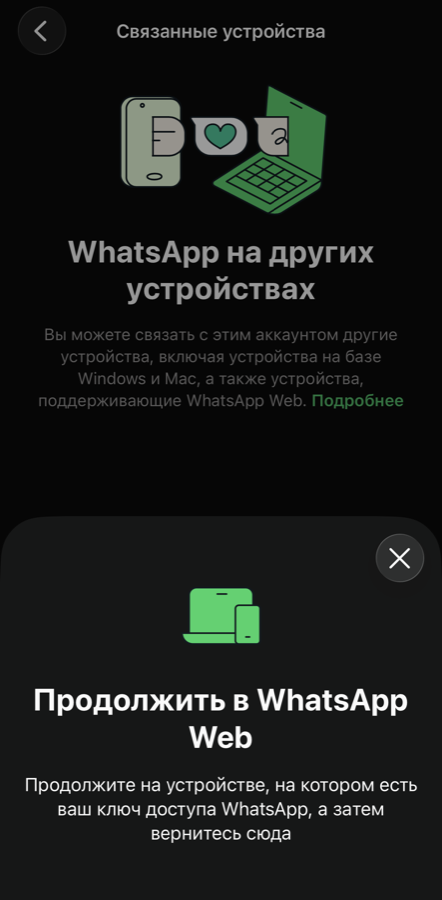
If a passkey isn't turned on, you won't see this step at all — the connection completes as usual, right after the scan.
Before you start
Browser
Passkey confirmation runs through the AISAR browser extension, which only works in Chromium-based browsers — Google Chrome and Microsoft Edge. The extension cannot be installed in Safari or Firefox: if you open the connect wizard in one of those, the wizard notices and shows an "Open in Chrome" prompt — if that happens, just open my.aisar.app in Chrome or Edge and start the connection again.
The AISAR WA Passkey Connector extension
For now the extension is installed manually, ahead of its Chrome Web Store listing — once it's published, a regular "Install from the store" button will appear here. Until then:
- Download the extension archive: aisar-passkey-extension.zip.
- Unzip it into any permanent folder on your computer — don't delete that folder afterwards, the extension runs directly from it.
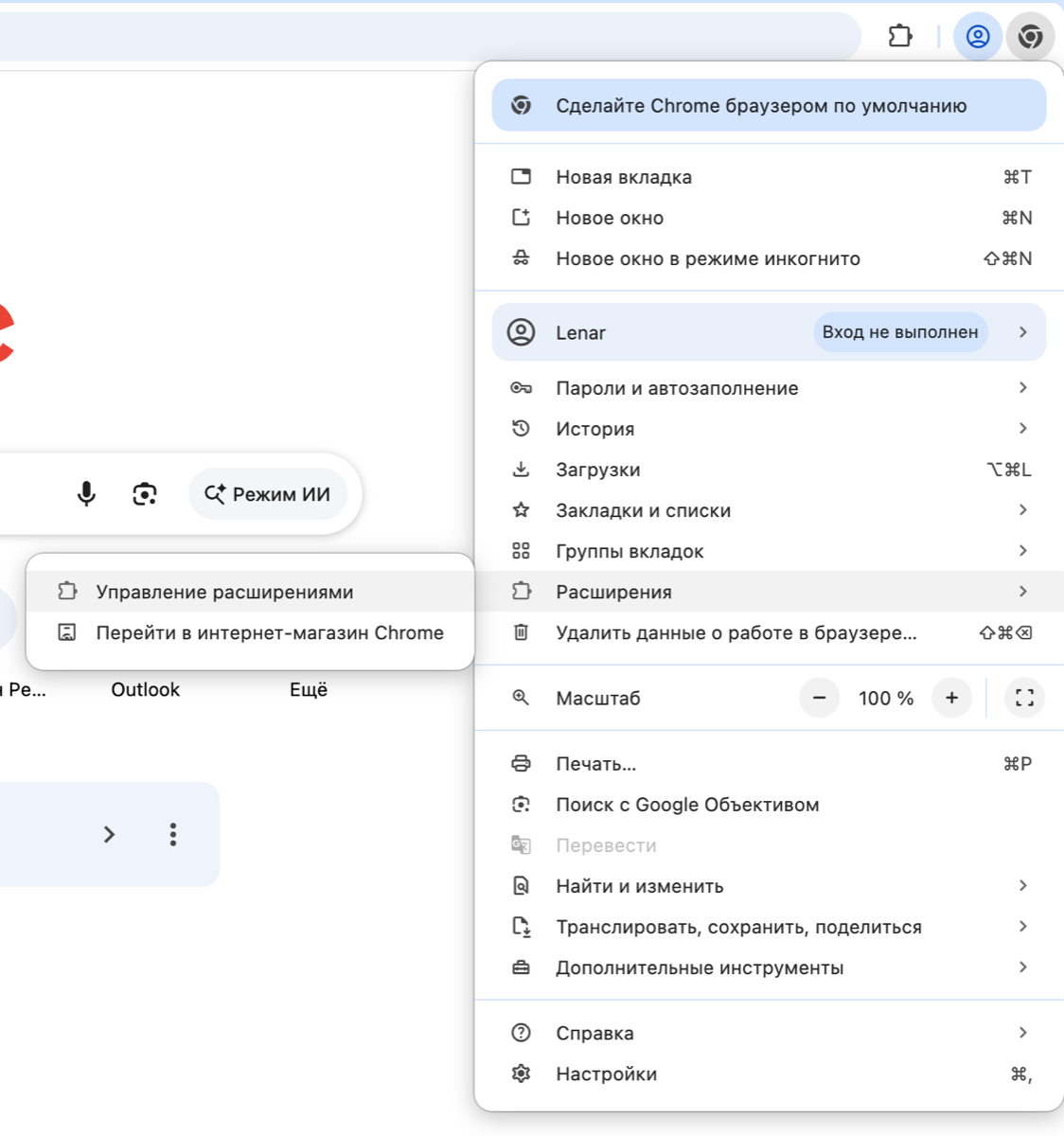
- Open
chrome://extensionsin Chrome (or Edge). - Turn on the "Developer mode" toggle in the top-right corner of the page.
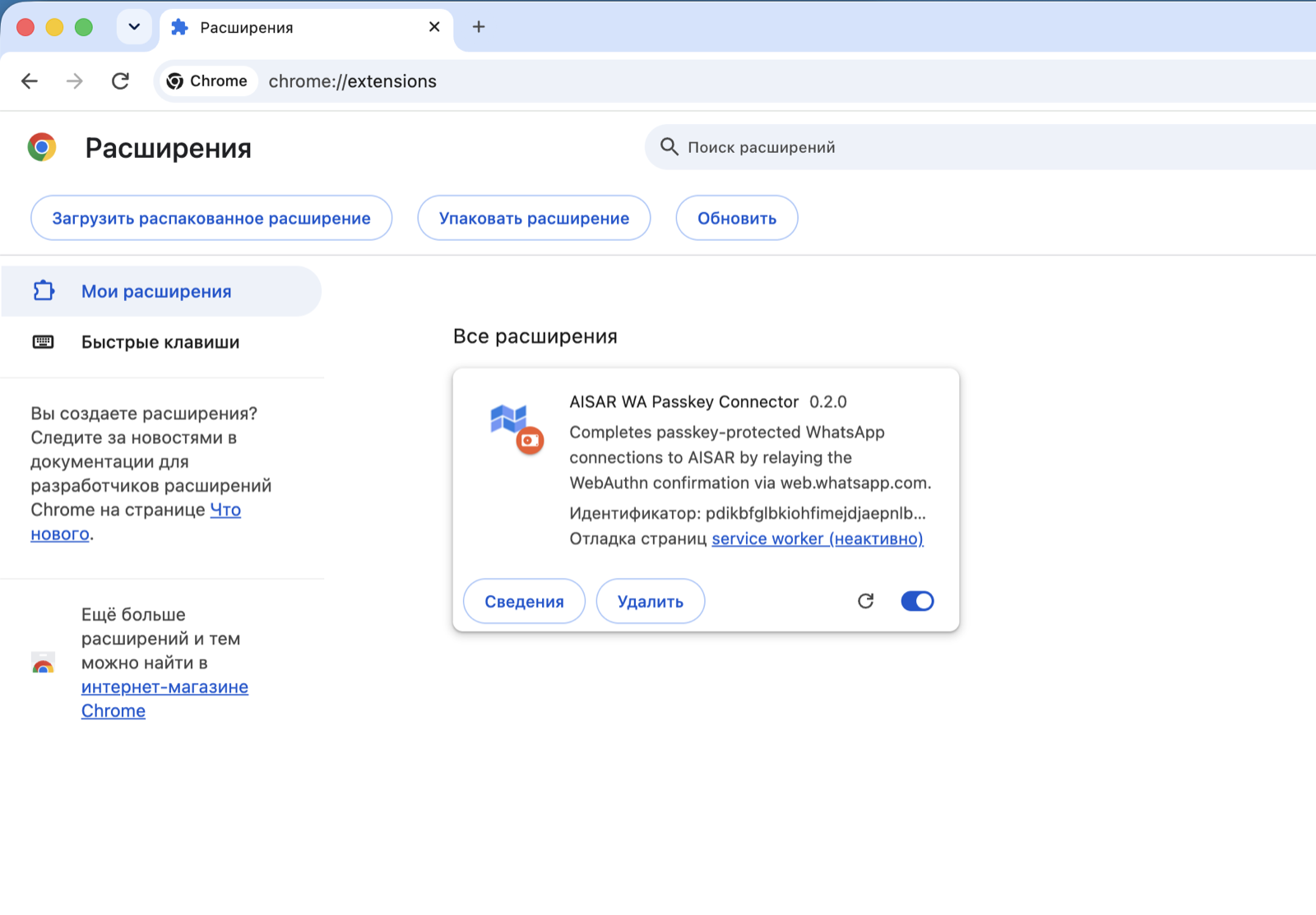
- Click "Load unpacked" and select the folder you unzipped the archive into.
- Make sure the extension appears in the list and is enabled — there should be no errors next to it.
Step-by-step connection
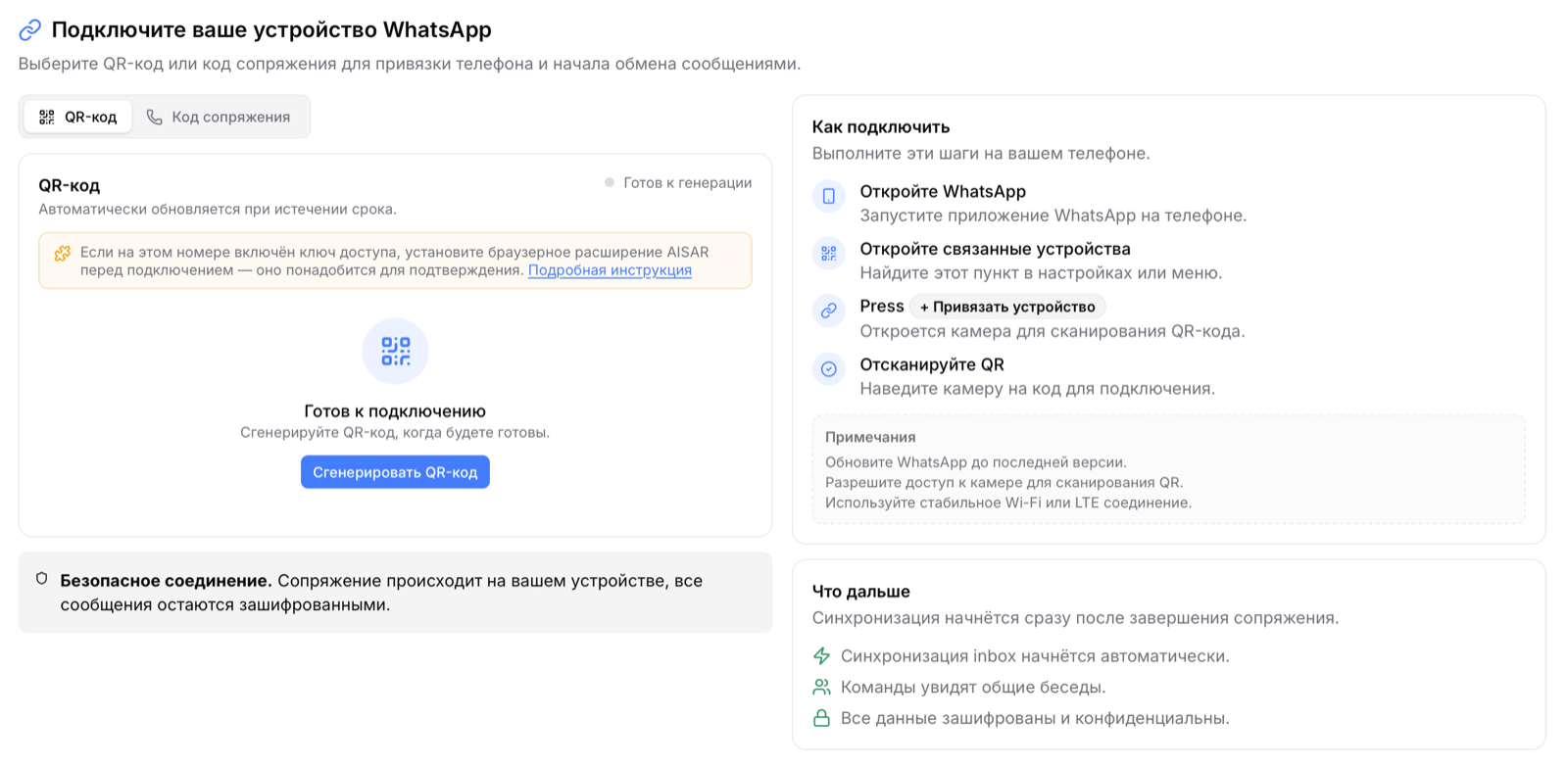
- Open my.aisar.app → the "Channels" section → "Connect WhatsApp".
- Scan the QR code with your phone, as usual.
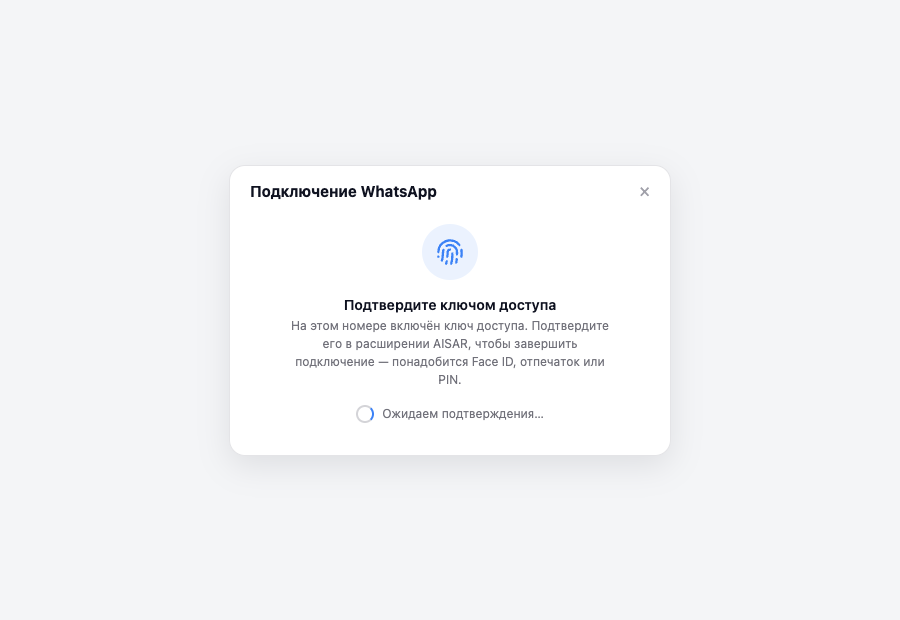
- If the number is passkey-protected, the wizard shows a "Confirm with a passkey" step and hands the request to the extension itself — no action needed from you at this point.
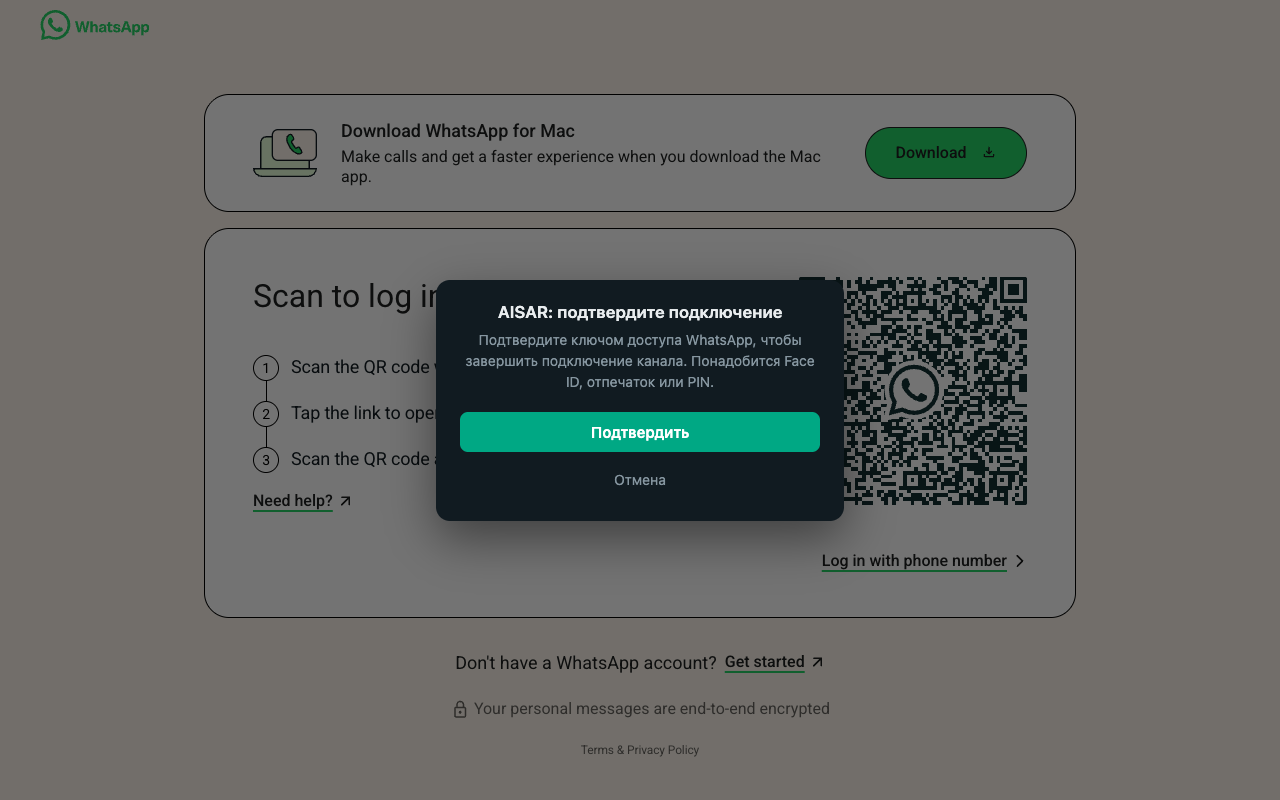
- A new web.whatsapp.com tab opens with an "AISAR: confirm connection" window — click "Confirm" in it.
- The browser asks for Face ID, a fingerprint, or a PIN — confirm the same way you normally unlock your device.
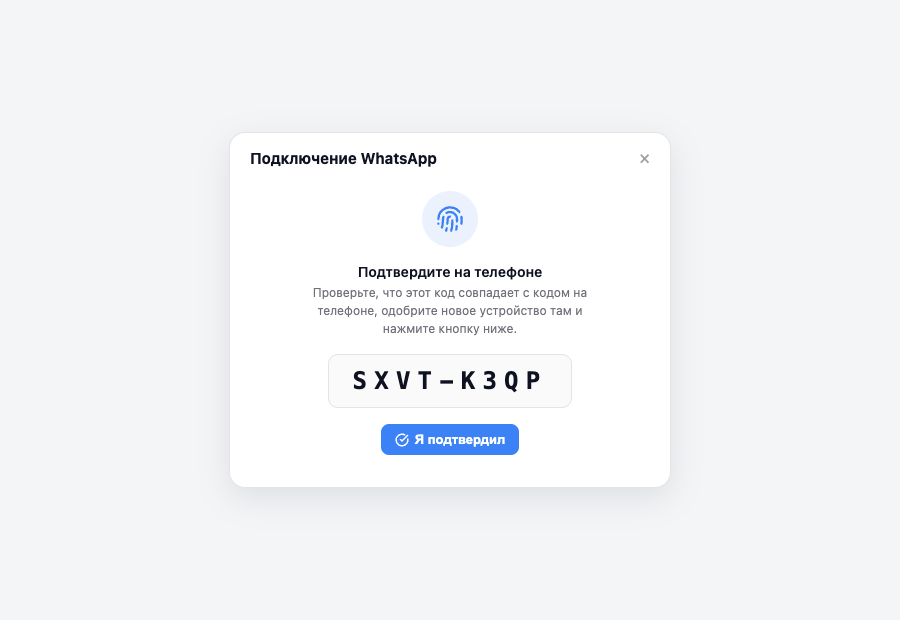
- Sometimes WhatsApp additionally asks you to confirm the new device on your phone itself. If that happens, the wizard shows a short code — check it matches the code on your phone, approve the connection there, then click "I confirmed" in the wizard.
- The channel switches to "Connected" status, and the web.whatsapp.com tab closes on its own.
If it didn't work
| Symptom | Cause and what to do |
|---|---|
| The wizard is open in Safari or Firefox, the passkey step won't go through | The extension only works in Chrome and Edge. Open my.aisar.app in one of them and start the connection again. |
| "Too Many Attempts" or a similar error while scanning the QR code | Close other open my.aisar.app tabs, wait a minute, and retry the connection. |
| The device never offers Face ID/fingerprint/PIN, as if there is no key | The passkey is usually stored on your phone, not your computer. Wait for the browser to offer signing in from another device, and scan the code it shows with your phone. |
| Confirmation hangs for a long time and eventually resets | The whole step has about a 10-minute window. Click "Try again" and stay on the WhatsApp tab until you complete Face ID/fingerprint/PIN. |
| The channel connected and almost immediately disconnected | On your phone, open WhatsApp → Settings → Linked devices and remove old/unused sessions, then scan the QR code again. |
| None of this helped | Contact AISAR support and describe exactly which step you got stuck on — that helps us sort it out faster. |