
Connecting SIP telephony
SIP telephony connects your telecom operator's number to AISAR as an ordinary SIP trunk — with a login and password, or with the equipment's trusted IP addresses. Calls are received and placed through AISAR, and the conversation itself runs in the browser softphone, the Zoiper app on a phone, or a desktop SIP phone. Here's how both connection methods work.
What you'll need
- A phone number in international format, and your SIP provider's details — either a login and password ("Register" mode) or the IP addresses and port of its equipment ("By IP address" mode).
- Access to the provider's dashboard or support, to add AISAR's IP addresses to its trusted/allowed list — without this, registration and calls get rejected.
- Telephony active on the company's plan — this channel type is only available with the telephony feature turned on.
- A way to actually talk after connecting: the AISAR browser softphone (an open my.aisar.app tab), the Zoiper app on a phone, or a desktop SIP phone — the trunk connection alone doesn't let anyone make or take a call without one of these.
Where to find it
In my.aisar.app open Settings → Channels → Add channel, find the SIP telephony card in the catalog, and click Connect.
How to connect
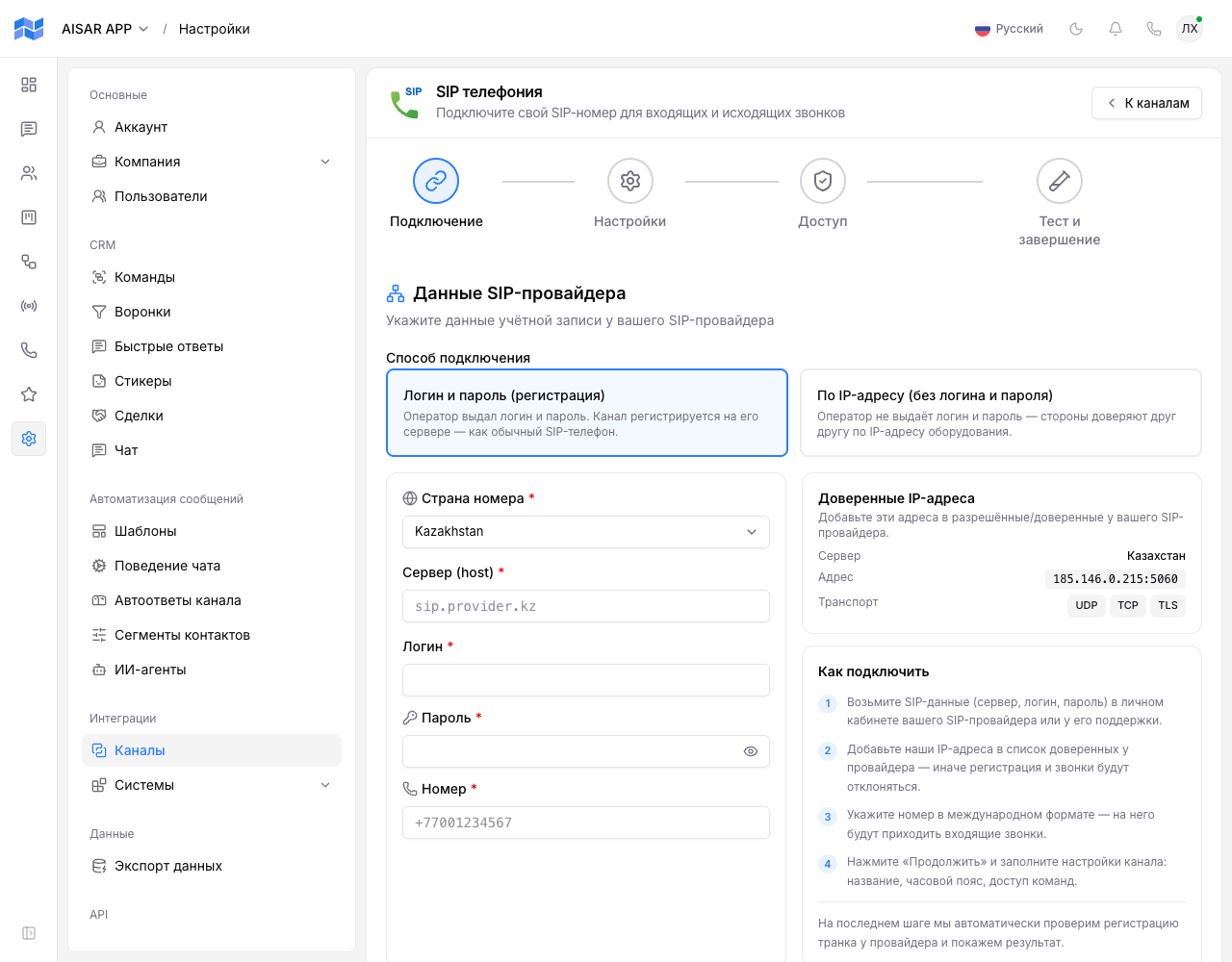
- Click Connect on the SIP telephony card — the "SIP telephony" wizard opens, with four steps: Connect, Settings, Access, Test and finish.
- On the Connect step, pick a Connection method: "Login and password (register)" if the operator issued credentials, or "By IP address (no login or password)" if the two sides trust each other purely by IP.
- For register mode, fill in Number country, Server (host), Username, Password, and Number in international format (e.g.
+12025550187). - For IP mode, fill in Number country, up to 4 addresses under Provider equipment IP addresses (the first one is used for outbound calls), Port (5060 by default), and Number.
- On the right, the wizard shows a Trusted IP addresses block — the server, addresses, and transport (UDP/TCP/TLS) AISAR uses for the selected country. Pass these to your provider and ask them to allowlist them — without this step, registration and calls get rejected.
- Click Next. On the Settings step, enter a Channel name (defaults to the number if left blank), optionally a Description, a Timezone, and the Language for system messages on this channel.
- On the Access step, choose which teams have access to this number for calls.
- Click Continue — AISAR sends the details to the provider and moves to the Test and finish step, checking the trunk right away: in register mode, the registration status with the provider; in IP mode, whether the provider's equipment answers a technical (qualify) check.
- If the check succeeds, click Go to channels or Go to Telephony to finish the setup.
How to check the channel is working
The Test and finish step already shows the trunk status — "Trunk registered" (register mode) or "Provider equipment reachable" (IP mode), with a Test again button if needed. Beyond that, make a real test call: call the connected SIP number from an outside line — the call should ring in the AISAR browser softphone, Zoiper, or a desktop SIP phone belonging to one of the operators with access to the channel. Then place a call from that channel to an outside number to check outbound.
Common issues
| Symptom | Cause and what to do |
|---|---|
| The test shows "Registration failed" (register mode) | Double-check the login, password, and server (host) with the SIP provider, and confirm AISAR's trusted IP addresses were actually added to its allowed list. |
| One of the IP addresses is rejected ("invalid", "private", or "belongs to AISAR") | The field needs the provider's own public IPv4 address, no subnet mask — private ranges (10.x, 172.16–31.x, 192.168.x) and AISAR's own platform addresses don't qualify. Ask the provider for its public IP. |
| The number doesn't pass validation | The format is digits only, an optional leading +, 6 to 15 digits (international format, e.g. +12025550187). |
| In "By IP" mode the test shows "unreachable" or "status unavailable" | Some operators don't answer technical (qualify) checks — that doesn't mean the channel is broken. Make a test call; if that fails too, double-check the provider equipment's IP addresses and port. |
| Outbound calls don't go through even though inbound works | In IP mode, the first address in the list may already be shared with another AISAR customer at the same operator — in that case AISAR keeps outbound calls off until the first inbound call to this number confirms it's really yours. The test screen shows a dedicated notice when this applies. |
| The call reaches AISAR but nobody picks it up | Make sure an operator with access to this channel (the Access step) has a way to pick up — an open my.aisar.app tab with the browser softphone, the Zoiper app on their phone, or a desktop SIP handset. |
See also
To handle messages and calls from this number in the same inbox as your other channels, see the rest of the channel-connection how-to guides in this section. What happens to an inbound call to this number — who picks it up, during which hours, and whether the caller hears an IVR menu and chooses an option by pressing a key — is set by a scheme under Telephony → Settings, the "Where a call goes" tab. Which line agents call out from is covered in Outbound routes. Channel features and pricing are on aisar.app/en/channels/sip-telephony.