
Connecting Bitrix24
A step-by-step guide to connecting Bitrix24 to AISAR: installing the app, binding channels to Open Lines, matching users, and setting up click-to-call telephony.
What the integration gives you
The integration connects AISAR to your Bitrix24 portal: conversations from AISAR channels (WhatsApp, WhatsApp Business API, Telegram, Telegram bot, Instagram Business, Threads, Facebook Messenger, Live Chat, SIP telephony) land in Bitrix24 Open Lines, contacts and deals sync both ways, and an AISAR tab with the conversation appears right on CRM cards. Telephony is a separate step: clicking a phone number in the CRM places a call through AISAR.
What you'll need
- A Bitrix24 portal with administrator rights — only a portal administrator can install apps from Bitrix24.Marketplace.
- An AISAR account with the admin role in the company you're connecting the portal to (the same role is needed to confirm the link on the AISAR side).
- At least one connected AISAR channel (WhatsApp, Telegram, etc.) that you plan to bind to an Open Line.
Step 1. Install the app
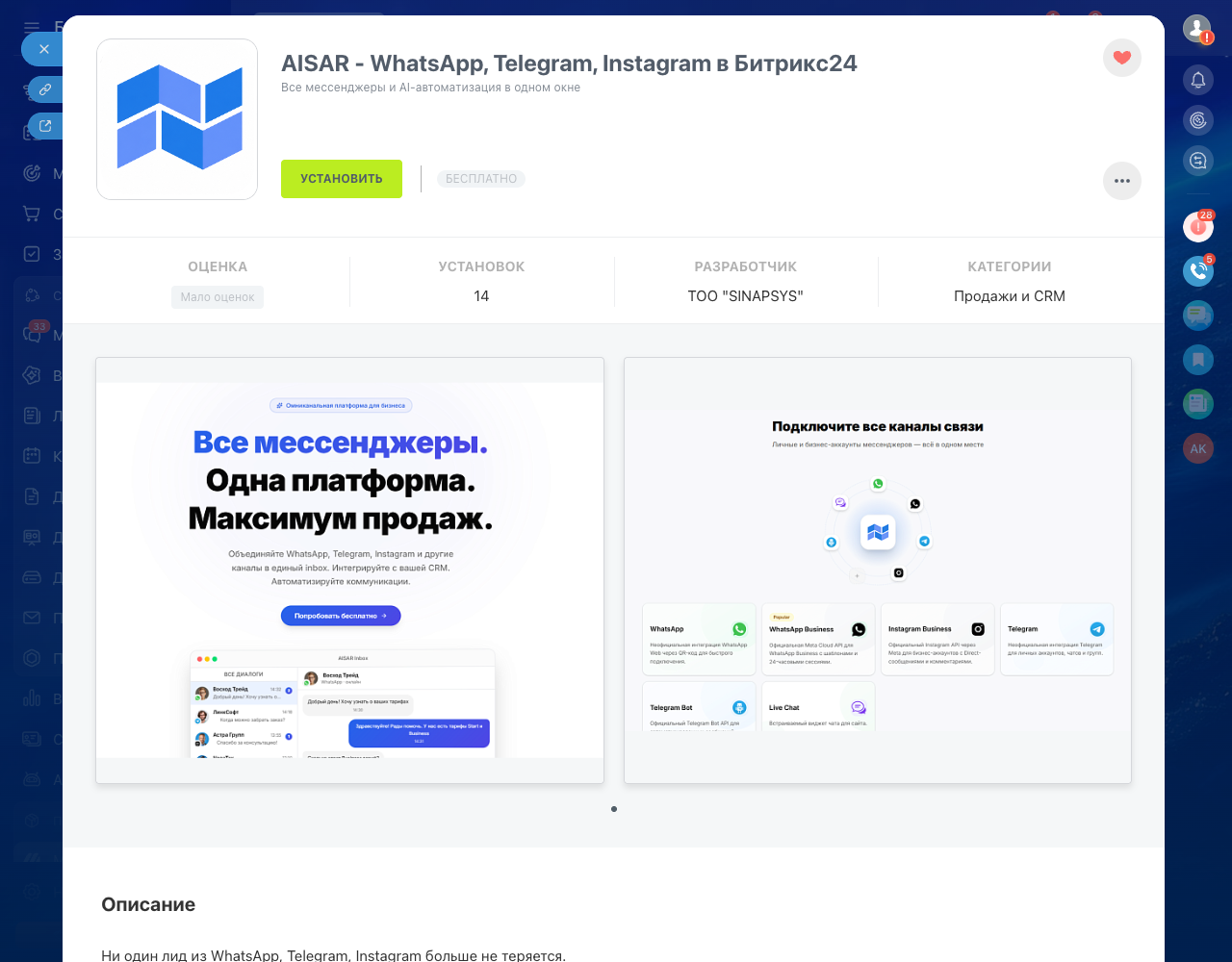
The AISAR app is published on Bitrix24.Marketplace — this is the main way to install it.
- In your Bitrix24 portal, open Market and search for the AISAR app (or follow a direct link to the app page if you have one).
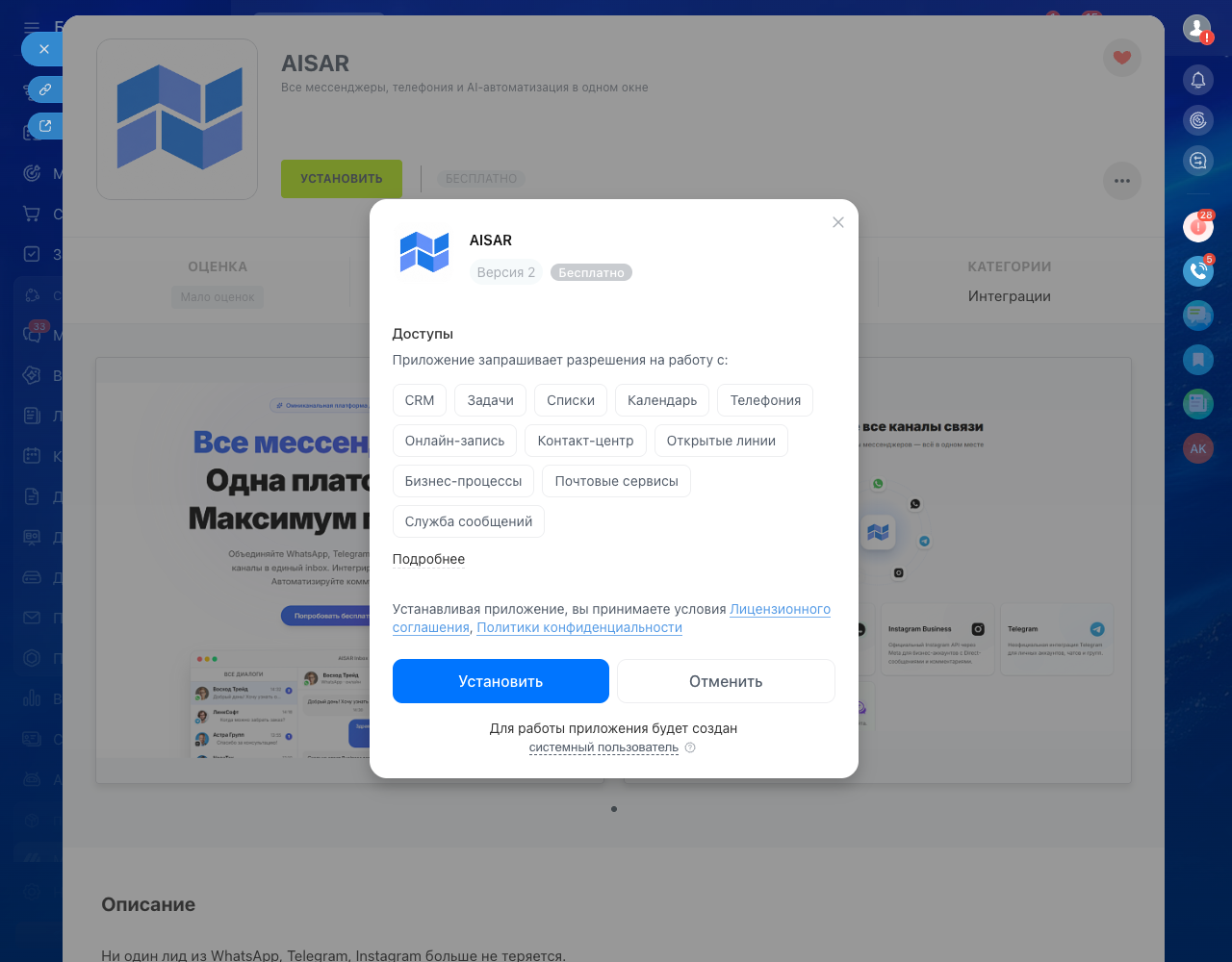
- Click Install and confirm the requested permissions.
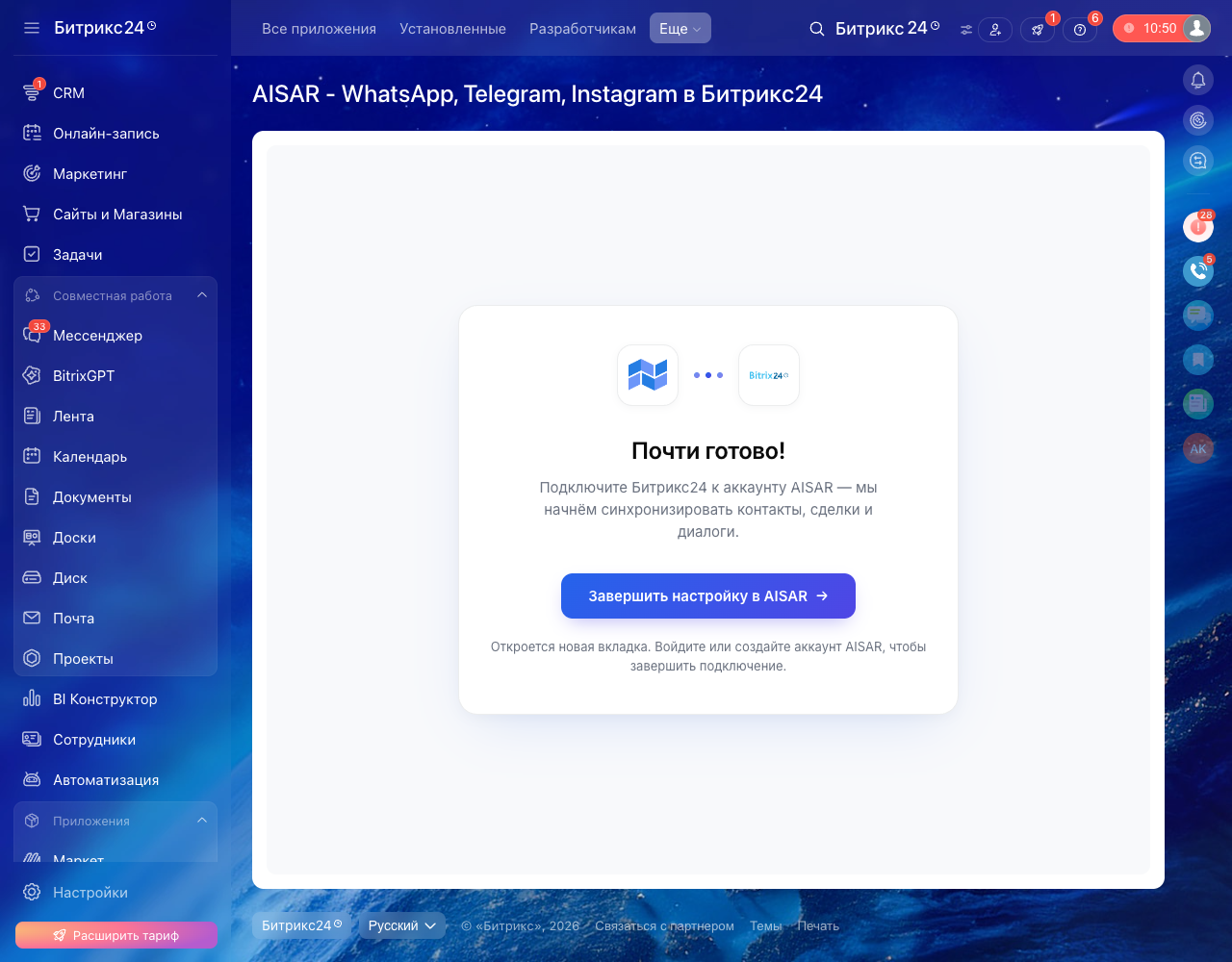
- After installation Bitrix24 shows an "Almost there!" screen with a "Finish setup in AISAR" button — click it.
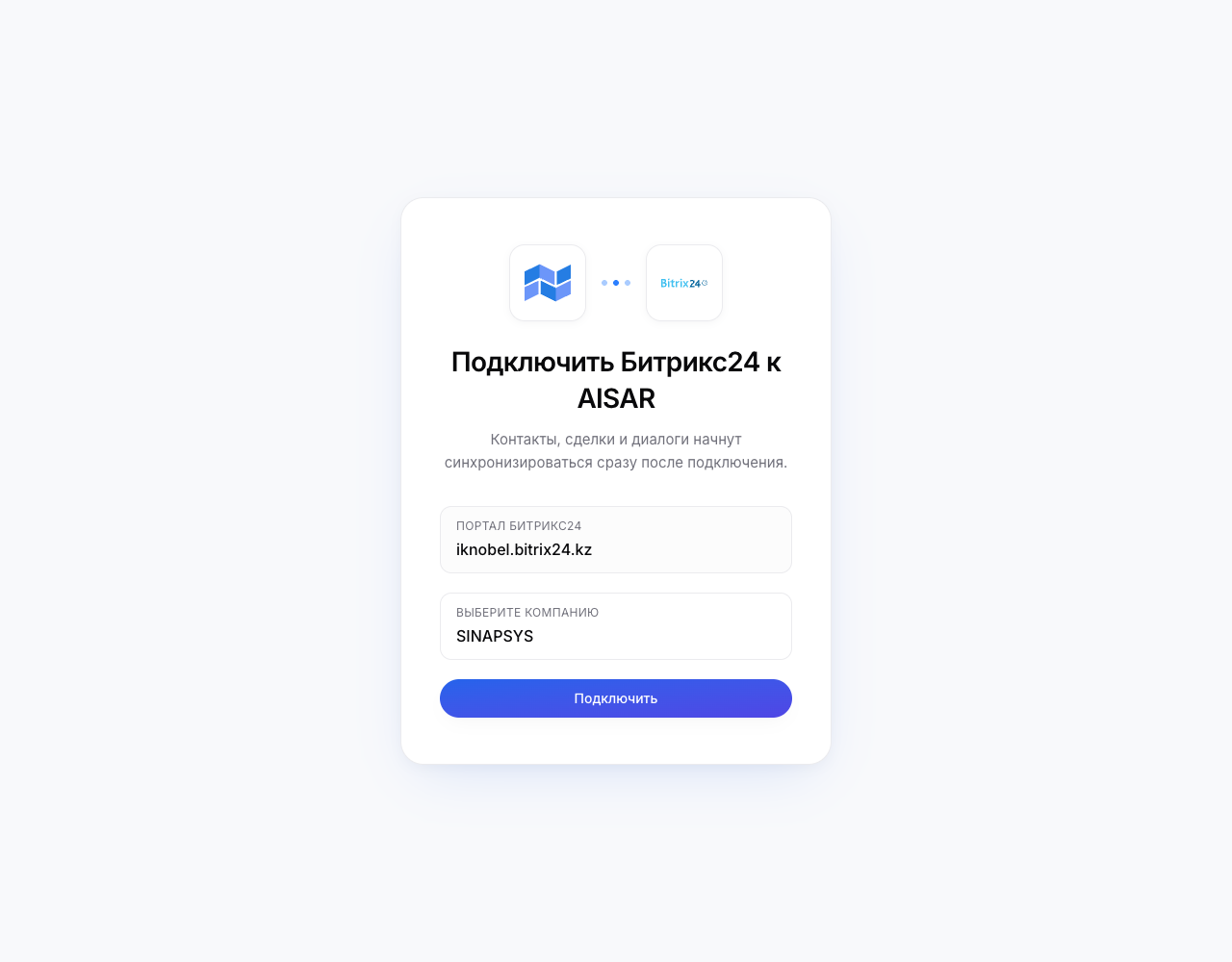
- A new my.aisar.app tab opens. Sign in to your AISAR account (or register a company if you don't have one yet) and pick the company to attach this portal to.
- Confirm the link. The Bitrix24 tab updates itself to "Connected" and closes on its own — the link is complete.
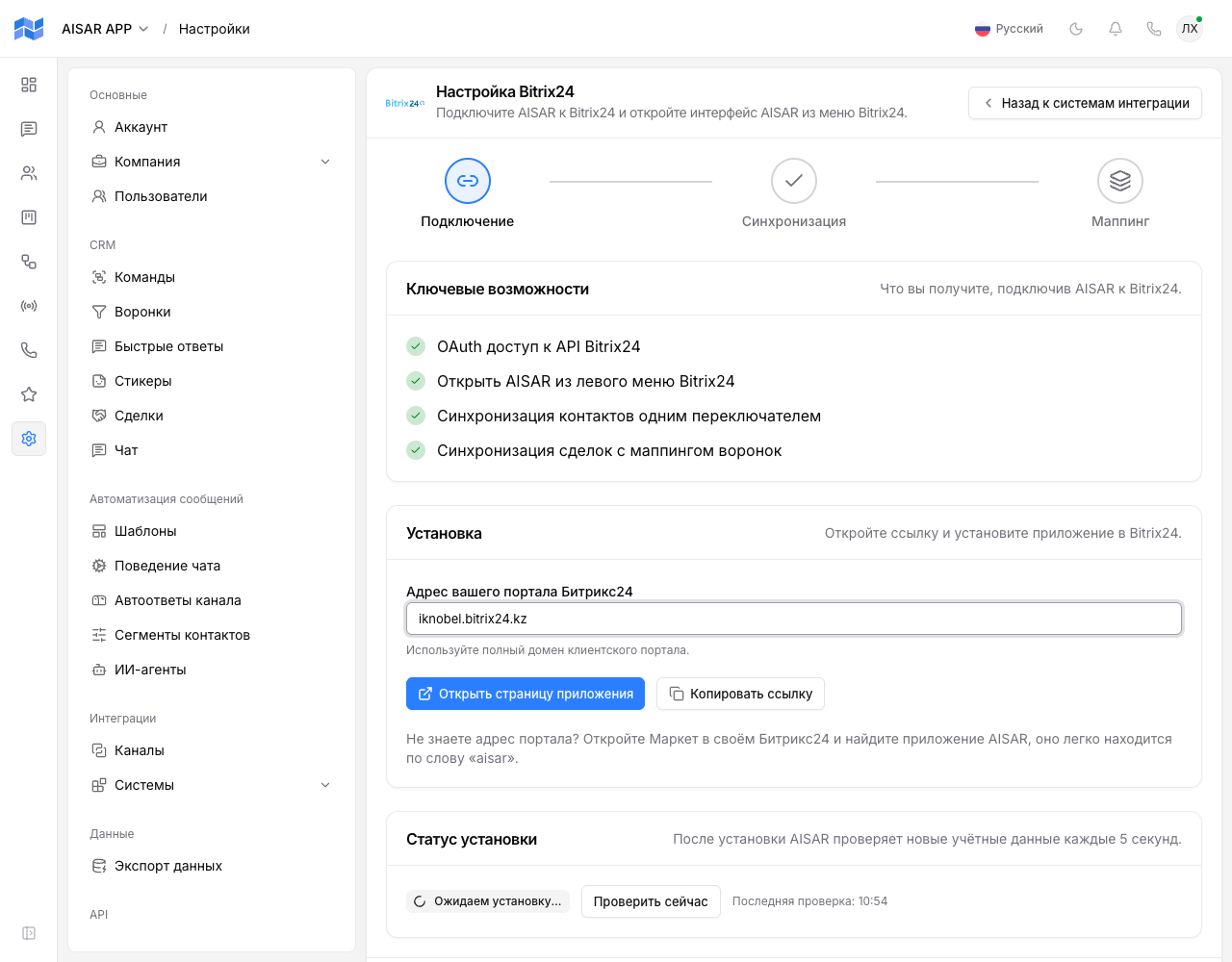
An alternative is to start from the AISAR dashboard: in my.aisar.app open Settings → Systems, click Setup on the Bitrix24 card and you land on the "Connection" step. Enter your portal address and click "Open app page": the AISAR page in your portal Market opens in a new tab. Meanwhile the wizard keeps waiting for the install and switches to "Connected" as soon as it lands.
Step 2. Bind channels to Open Lines
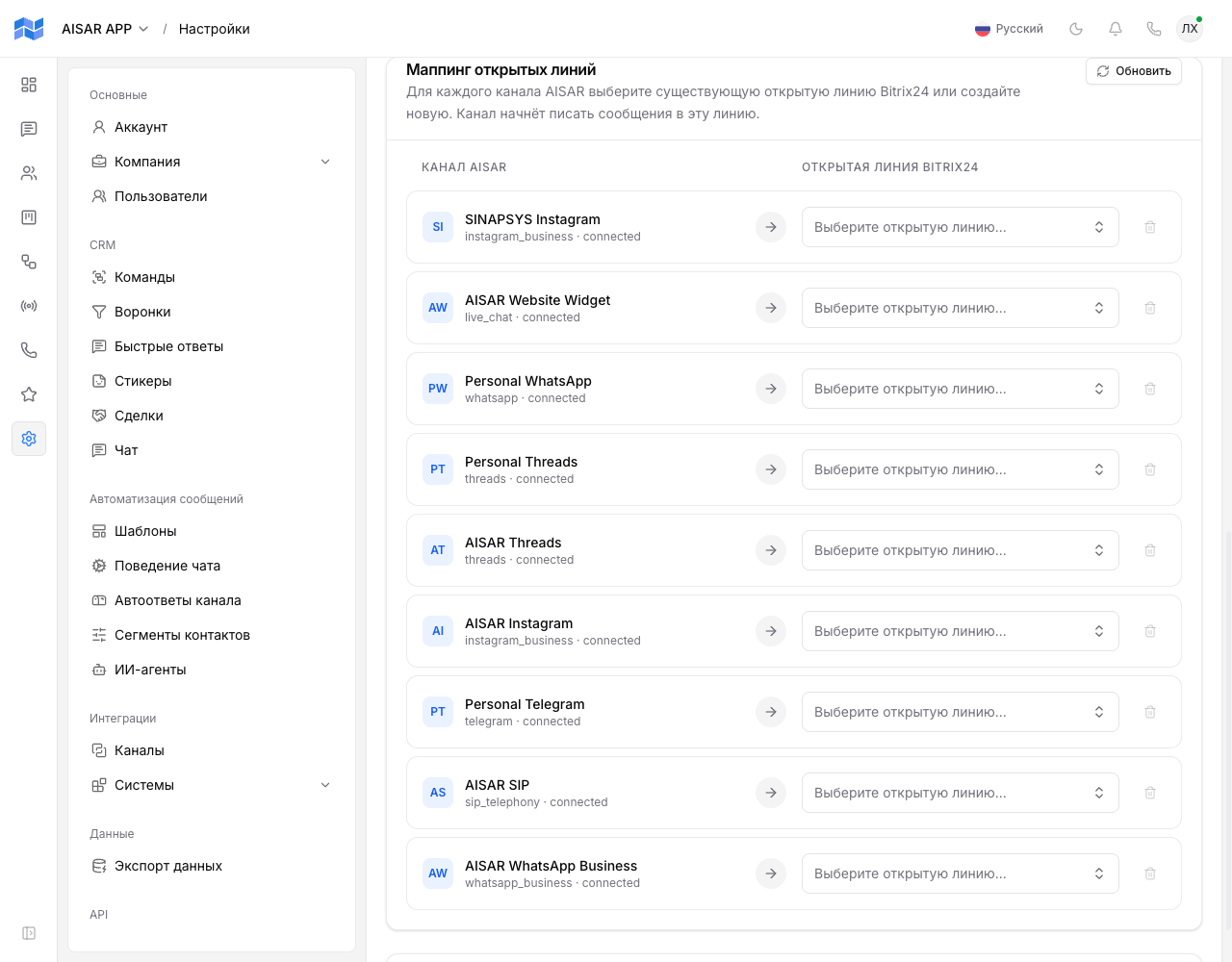
For AISAR conversations to land in Bitrix24 Contact Center, each channel needs to be bound to an Open Line. This happens on the Mapping tab of Settings → Systems → Bitrix24 in my.aisar.app.
- For each AISAR channel in the list, pick an existing Bitrix24 Open Line from the dropdown — or choose "Create a new line" to have AISAR create one for this channel automatically.
- If the chosen line is already used by another connector (say, a different messaging service), AISAR shows a warning with two options: "Coexist" — AISAR is added to the line alongside the existing connector, both keep working; "AISAR only" — the other connectors on that line are turned off.
- A binding can be removed at any time with the unbind button next to the channel row — this doesn't delete the line itself in Bitrix24.
Step 3. Match portal users to AISAR
Bitrix24 users and AISAR users are separate accounts, and AISAR doesn't match them automatically (except the person who installed the app — that pair is mapped for you). Without a mapping, an operator can't act as themselves in AISAR: the mapping matters both for the AISAR tab on CRM cards and for telephony.
- On the same Mapping tab, find the user-matching block — Bitrix24 users on the left, your AISAR company members on the right.
- For every employee who works with conversations or calls in Bitrix24, select the matching AISAR user from the dropdown.
- Right after the first install, this step may show up as its own screen ("Match Bitrix24 users with AISAR") — it's the same list, just surfaced in the first-run wizard.
Step 4. Set up telephony
Telephony is a separate, optional part of the integration: it turns on click-to-call from a phone number right in a CRM card. It's set up in two places — one on the AISAR side, one on the Bitrix24 side.
On the AISAR side
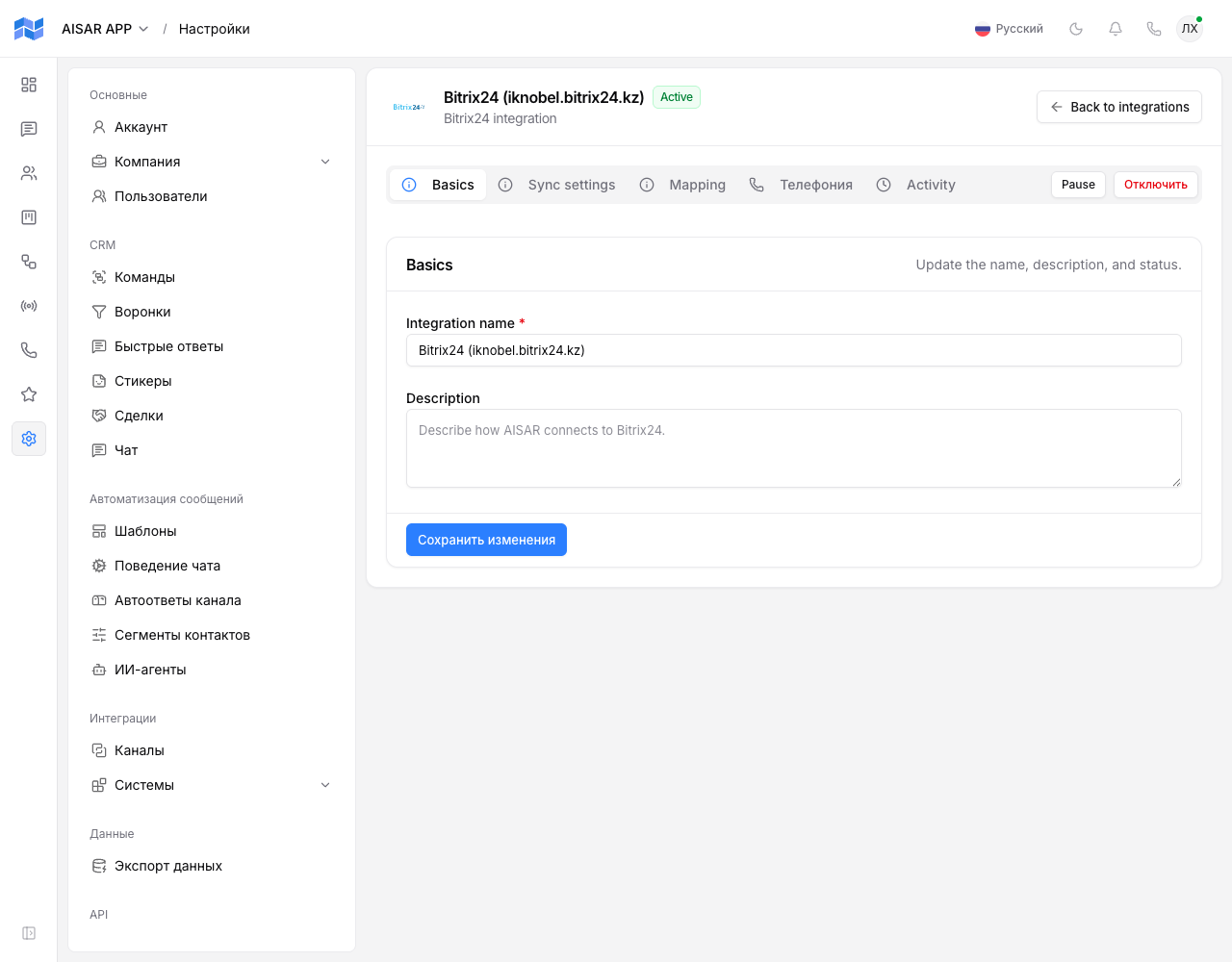
- On the Telephony tab of Settings → Systems → Bitrix24, turn on the telephony switch.
- Optionally pick a default Bitrix24 operator — calls will be assigned to them if the calling operator isn't matched yet (step 3).
- Optionally turn on automatic lead creation in Bitrix24 for calls from a number that isn't found in the CRM.
On the Bitrix24 side — a required step
The conversation itself doesn't happen inside the Bitrix24 window — the portal only initiates the call and shows the call card. The call itself runs wherever the operator's device is: a my.aisar.app browser tab with the browser softphone (keep it open), the Zoiper app on a phone, or a desktop SIP phone — whichever that operator has connected. The exception is the softphone in the AISAR tab inside Bitrix24, see the section below.
What it looks like day to day
- AISAR tab on the card. Contact, lead and deal cards in Bitrix24 get an AISAR tab showing the conversation with that contact — no need to switch to my.aisar.app just to check the latest messages. If the client from the card is not in AISAR yet, you can write to them first right from the tab: the phone number is filled in from the card (for WhatsApp Business API the first message goes out as a template).
- Conversations in Open Lines. New messages from bound channels arrive in Bitrix24's standard Contact Center (Open Lines) — the same way messages from any other connected messenger do.
- Calls. Clicking a phone number in the CRM places a call through AISAR; Bitrix24 shows its own native call card and, once the call ends, automatically attaches the call recording to the deal — the same as any other call made through the portal's telephony.
- SIP or WhatsApp. When the client has WhatsApp, their card shows two numbers: a plain "+1 202 555 0147" and "+1 202 555 0147 (WhatsApp)". The plain number calls over the company's SIP line. The (WhatsApp) number calls over WhatsApp, and AISAR picks the line the same way as for a call placed from my.aisar.app: by the operator's outbound call scheme, or by the company's line order when there is none. That can be the manager's own WhatsApp number or the WhatsApp Business number.
Calls right from the AISAR tab
You can also call a client without leaving the embedded AISAR chat: a softphone works in the AISAR tab on a deal, contact or lead card and in the shared chat from the Bitrix24 left menu. The conversation happens right in that tab, no separate app needed.
- What you need. Your AISAR status is "Online", you have the telephony permission and an operator SIP account (see step 4). When the browser asks for microphone access, allow it.
- How to call. Press the "Call" button in the conversation header. The deal tab shows the whole dialogue with the client, including calls and their recordings.
- Line. If the employee has an outbound call scheme, the "Call via" list offers only the lines of that scheme. Without a scheme, every line the employee has access to is available.
- Incoming calls. While the AISAR tab is open for a number in Bitrix24, the standard Bitrix24 phone call for that number arrives there as an incoming call. Accept it manually with the button in the softphone.
AISAR robots in deal and lead automation
Besides the card tab and Open Lines, AISAR adds two robots to Bitrix24. You can put them into CRM → Automation (deals and leads) as an ordinary scenario step, for example "when a deal moves to stage X, send the client a message". This section is written for the portal administrator.
The two robots
- "AISAR: send a WhatsApp template": sends an approved template from a WhatsApp Business number. It works outside the 24-hour window too, so this is the robot for a first touch.
- "AISAR: send a message": sends free text from a channel you choose. WhatsApp, WhatsApp Business, Telegram and Instagram are supported. Bitrix24 field substitutions work in the text, for example the deal title or the client's name.
Adding the "send a message" robot
- Open a deal or lead and go to Automation. Pick the stage where the message should go out.
- Click "Add robot", the "AISAR" section, and choose "AISAR: send a message".
- In the "Channel" field pick a specific number or the "From the responsible person's number" entry (details below).
- In "Message text" enter the text and insert Bitrix24 fields through substitutions if needed. The text can be up to 4096 characters.
- Leave "Phone" empty if the message should go to the client's number from the card. A filled field overrides the recipient.
- Save the scenario.
Choosing the channel: a specific number or "From the responsible person's number"
The channel list shows the company's connected channels: name, number and the type in brackets. If you pick a specific number, every message of this step goes out from it.
The "From the responsible person's number (WhatsApp)", "(Telegram)" and "(Instagram)" entries work differently: the message goes out from the number of the manager who is the responsible person on the deal or lead. This needs three settings:
- The responsible person in Bitrix24 is matched to an AISAR employee (step 3 above, the Mapping tab). Without the match the robot cannot tell who that is.
- In the channel settings in AISAR, the "Employee whose number this is" field names that employee. The field exists on channels of any type.
- The employee has access to the channel (the "Access" tab in the channel settings) and may send messages.
If the employee has two numbers of the same type, the robot takes the one where the conversation with this client is active or more recent. There is no fallback channel: if the chain does not hold, the message is not sent and the reason is written to the log (see below).
Who receives the message
- The recipient is the contact of the deal or lead.
- If the deal is not in AISAR yet, the contact is taken from the Bitrix24 card: first the linked contact, then an unambiguous match by phone number. With several matches the robot does not guess and refuses.
- The "Phone" field overrides the recipient: the message goes to the number you give.
Channel limits
- WhatsApp Business. Free text is delivered only while the 24-hour window is open, meaning the client wrote within the last day. Otherwise use the "send a WhatsApp template" robot. If the Phone field holds a number the client never wrote from, the window counts as closed.
- Telegram and Instagram. Sending works only if a conversation with the client already exists. These messengers do not let you write to a client first.
- Personal WhatsApp numbers (connected by QR). Mass sending carries a risk of the number being blocked. Do not put the robot on a stage that hundreds of deals pass through in a short time.
Where to see why a message was not sent
If the robot sent nothing, the scenario step in Bitrix24 still finishes without an error. Look for the reason in the Bitrix24 integration log in AISAR: robot entries start with robot_message. (the message robot) and robot. (the template robot). A successful send is logged as robot_message.sent.
| Code | What it means and what to do |
|---|---|
| channel_not_found | The channel was deleted or does not belong to the company. Pick the channel in the robot settings again. |
| channel_inactive | The channel is not connected right now. Reconnect it in AISAR. |
| channel_type_unsupported | The robot does not support this channel type. Choose another channel. |
| text_required, text_too_long | The text is empty (for example an empty substitution field) or longer than 4096 characters. |
| invalid_phone | The Phone field holds something other than a number, for example an email address or a name. |
| contact_not_resolved | The recipient could not be determined: the card has no linked contact and no unambiguous phone match. Link a contact to the deal or give a phone in the robot. |
| contact_opted_out, contact_blocked, contact_hidden | The client opted out, is blocked or is hidden in AISAR. Sending is blocked on purpose. |
| window_closed | WhatsApp Business: the 24-hour window is closed. Use the template robot. |
| dialog_not_created, no_contact_account | The conversation could not be opened: the client has no suitable account or number in this messenger (for example, has not written first in Telegram or Instagram). |
| phone_belongs_to_other_contact | The number from the Phone field already belongs to another contact in AISAR. |
| daily_dialog_cap_reached | The daily limit of new conversations is reached. The robot resumes the next day. |
| no_actor, actor_no_permission, actor_no_channel_access | For a specific channel, the sending is done on behalf of the person who connected the integration. They are no longer a company member, or lack the right to send or access to the channel. Grant access or reconnect the integration. |
| responsible_unavailable | The responsible person could not be read from Bitrix24. Try again later. |
| responsible_not_mapped | The responsible person is not matched to an AISAR employee, or the match is ambiguous. Check the Mapping tab. |
| responsible_not_member, responsible_no_permission | The employee is no longer in the company or may not send messages. |
| responsible_no_channel | No connected channel of this type has this employee in "Employee whose number this is". Set it in the channel settings. |
| responsible_no_channel_access | The employee has numbers but no access to any of them. Grant access on the channel's Access tab. |
| duplicate_step | This scenario step was already run for this client; the message is not sent twice. |
| throttled | Too many requests from the portal within a minute. The extra steps were skipped. |
The template robot has its own codes with the robot. prefix: for example template_not_approved (the template is not approved), template_channel_mismatch (the template belongs to another number), channel_invalid (the chosen channel is not WhatsApp Business), daily_cap_reached (the daily limit of template sends).
Common issues and fixes
| Symptom | Cause and what to do |
|---|---|
| You reinstalled the app in Bitrix24 (say, to refresh permissions) and are unsure what happened to your setup | If the portal was already linked to your AISAR company, AISAR recognizes it automatically and restores your previous sync settings and channel bindings — no need to go through claim again. If the status in my.aisar.app still shows "Not connected" more than a couple of minutes after reinstalling, open the integration card and click "Check now". |
| The Bitrix24 install screen says the portal is already connected to a different AISAR company | One Bitrix24 portal can be linked to only one AISAR company at a time. If this is a mistake (the portal got linked to the wrong place), contact AISAR support — unlinking someone else's integration needs a manual check. |
| Clicking a phone number in the CRM doesn't start a call in AISAR | Almost always one of two causes. First: Bitrix24's own "Telephony → Telephony settings → Default outbound number" isn't set to "AISAR app" (see Step 4). Second: the operator who clicked doesn't have a softphone open — they need an active my.aisar.app tab, Zoiper, or a desktop SIP phone. |
| Conversations from a channel don't show up in Bitrix24 Open Lines (or land in the wrong one) | Check that channel's binding on the Mapping tab (Step 2) — either it's missing, or it points at a different line than you expected. If the line is shared with other connectors, make sure the binding used "Coexist" rather than "AISAR only" (otherwise the other connector on that line got turned off). |
| A specific operator can't use the AISAR tab on a card, or their calls fail with an "operator is not mapped" error | This Bitrix24 user hasn't been matched to an AISAR user yet — go back to Step 3 and add the pair for them on the Mapping tab. |
See also
For an overview of the integration's capabilities and use cases, see aisar.app/integrations/bitrix24.