
Connecting the Live Chat widget
Live Chat is a chat widget you install on your own website with an embed snippet. Visitors message you right from the site, no messenger app required, and the messages land in AISAR's shared inbox alongside every other channel. Here's how to configure the widget and get the embed code.
What you'll need
- Access to your website's code (or its CMS) to paste the widget snippet in — usually right before the closing
</body>tag. - A list of the domains the widget should run on, if you want to restrict it to specific sites.
- Optionally, already-connected messenger channels (WhatsApp, Telegram, and others) to show as buttons next to the widget.
Where to find it
In my.aisar.app open Settings → Channels → Add channel, find the Live Chat card in the catalog, and click Connect.
How to connect
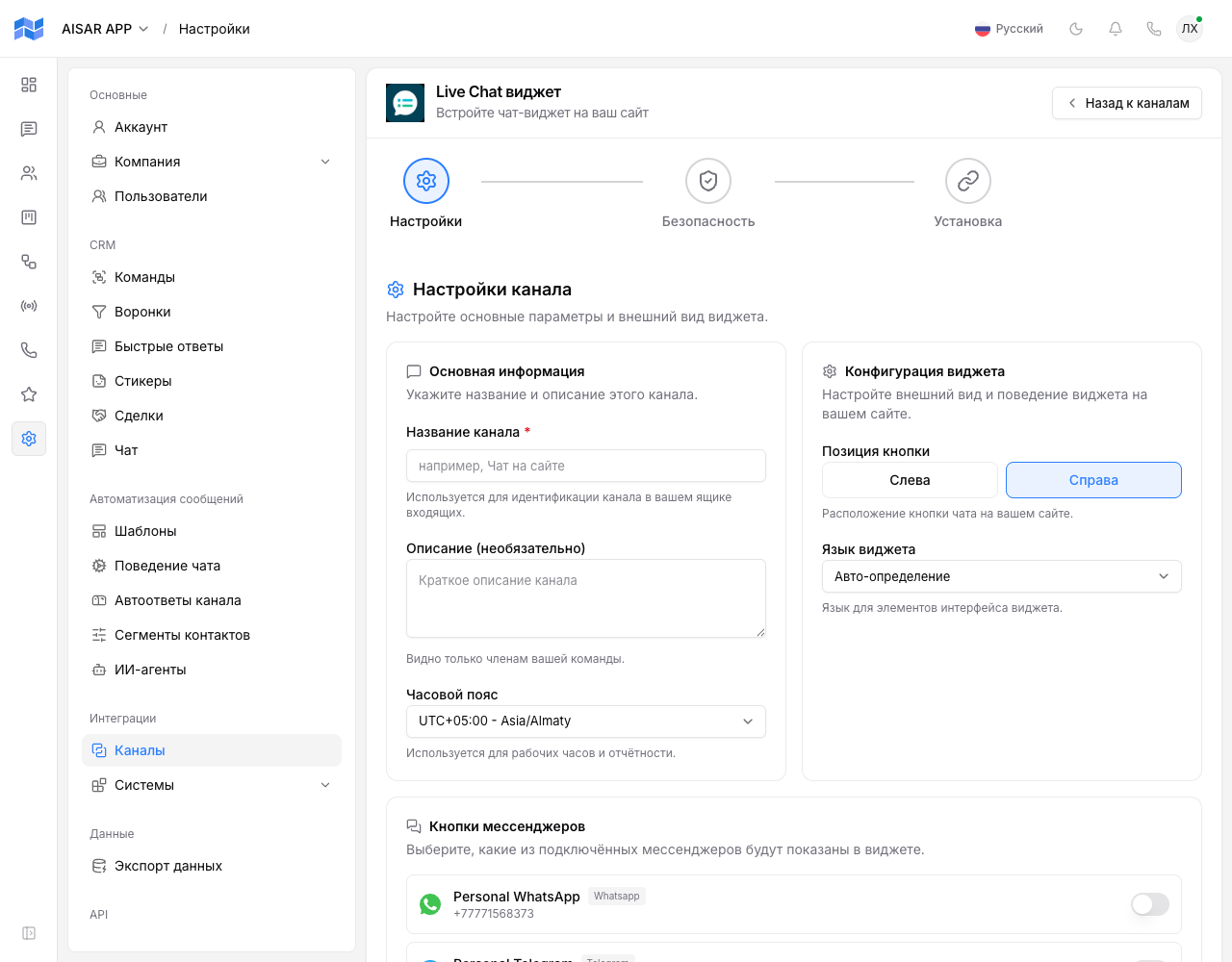
- Click Connect on the Live Chat card — the "Live Chat widget" wizard opens, with three steps: Settings, Security, Install.
- On the Settings step, enter a Channel name (required) and timezone, then in Widget configuration pick the Button position (Left/Right) and the Widget language (Auto-detect or a specific language).
- In Messenger buttons, turn on the toggles for already-connected channels (WhatsApp, Telegram, and others) — their icons appear next to the widget as an alternative way to message you.
- On the Security step, add the domains the widget is allowed to run on, and decide whether to allow automations and inbound message handling — broadcasts are not available for Live Chat, the channel only receives conversations.
- On the Install step, click Generate widget — AISAR creates the channel and shows the ready-to-paste embed code.
- Copy the code with the Copy code button and paste it into your site's code, usually right before the closing
</body>tag.
How to check the channel is working
Open the site you added the snippet to — a chat button should appear in the corner you picked. Send a test message through the widget — it should show up in AISAR's Chat section, and a reply sent from AISAR should arrive back in the widget window on the site.
Common issues
| Symptom | Cause and what to do |
|---|---|
| The widget does not show up on the site after adding the snippet | Check the snippet was pasted in full and unmodified, and that the site's domain is on the allowed list from the Security step — if that list isn't empty and the site isn't in it, the widget won't load. |
| You need to change the button position or language after connecting | These settings can be changed on the already-connected channel (Settings → Channels → the Live Chat card) — no need to reinstall the code on the site. |
| A messenger button doesn't show up next to the widget | A messenger button only shows for a channel with Connected status — if the WhatsApp or Telegram channel you want isn't connected yet or has disconnected, connect/reconnect it and turn the toggle back on in the Settings step. |
| The plan channel limit is reached when trying to connect Live Chat | Your company's plan caps how many channels can be connected at once. Disconnect an unused channel, or raise the limit with an extra-channel add-on in Billing. |
See also
For the widget's messenger buttons to point at real, connected channels, set those up separately: Connecting WhatsApp or Connecting Telegram. Channel features and pricing are on aisar.app/en/channels/live-chat.