
Connecting Telegram
AISAR's Telegram connector links a personal Telegram account as a linked device — by QR code or phone number, the same way Telegram Desktop or Telegram Web does. Personal chats and groups land in AISAR's shared inbox. Here's what to prepare and how to get through either method.
What you'll need
- A phone or other device with an active Telegram account on the number you want to connect — scanning the QR code or confirming the SMS code has to happen from it.
- If the account has cloud password protection turned on (Telegram's two-factor authentication) — that password itself, on hand.
- Access to my.aisar.app and the Settings → Channels section of the right company.
Where to find it
In my.aisar.app open Settings → Channels → Add channel, find the Telegram card in the catalog, and click Connect.
How to connect
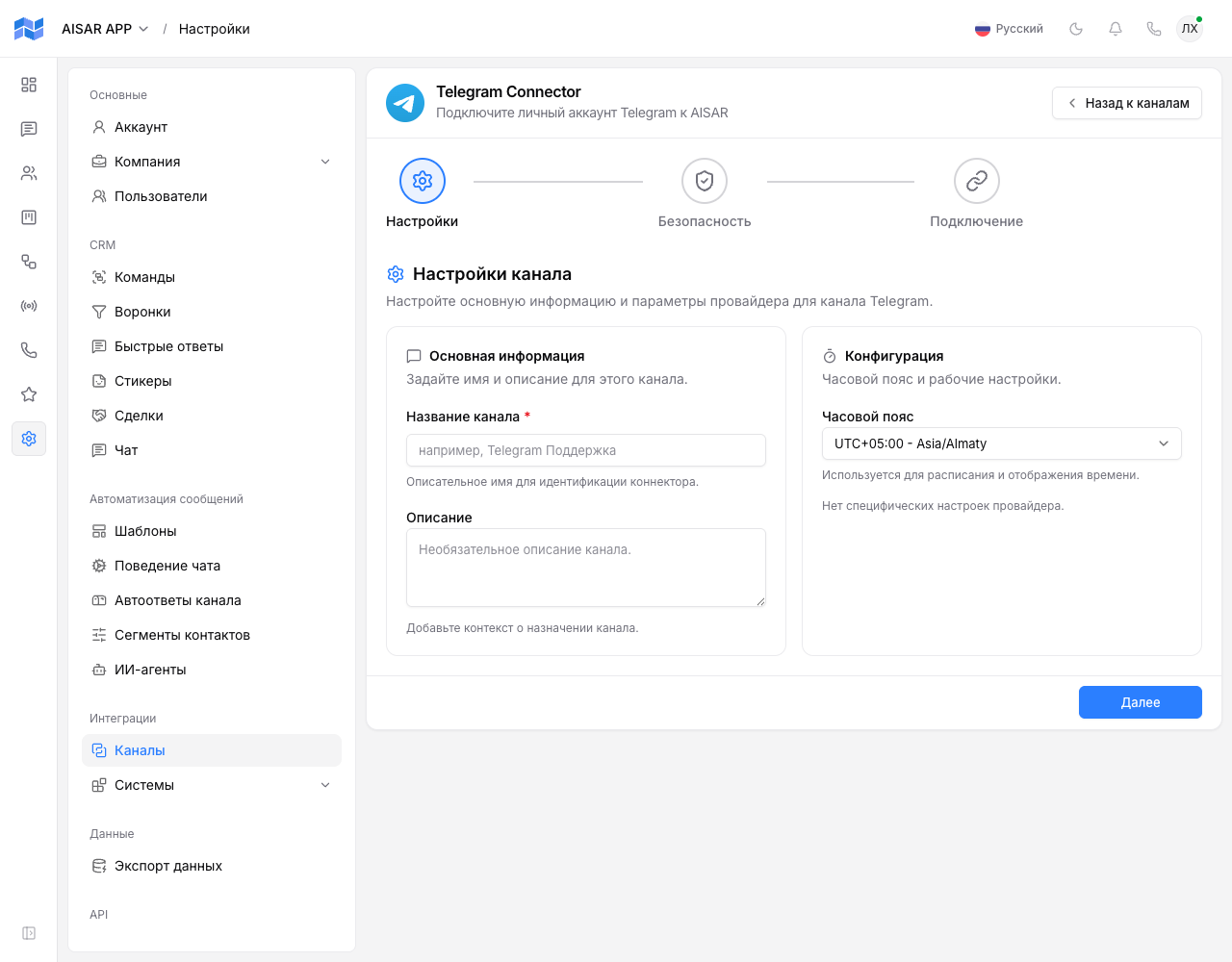
- Click Connect on the Telegram card — the Telegram Connector wizard opens, with three steps: Settings, Security, Connect.
- On the Settings step, enter a Channel name (required), optionally a Description, and pick a Timezone; there are no provider-specific settings for Telegram.
- On the Security step, choose which teams can see this channel, and whether it allows broadcasts, automations, and inbound message handling.
- On the Connect step, pick a method: QR code (the default) or Phone number.
- For the QR code, click Generate QR code, then in Telegram on another device open Settings → Devices → Link Desktop Device and point the camera at it.
- For a phone number, enter it and click Send code — Telegram sends a verification code (usually as a message inside Telegram itself); enter it in the wizard.
- If the account has cloud password protection on, the wizard asks for it in a separate Cloud password field after the verification code.
- As soon as Telegram confirms the sign-in, the status switches to Connected, and the wizard shows a confirmation screen — "Account linked" and "Sync initiated".
How to check the channel is working
In the channel list (Settings → Channels), Telegram shows the Connected status. Send a test message to the connected account from another Telegram account — it should show up in AISAR's Chat section within a few seconds, and a reply sent from AISAR should reach the other side.
Common issues
| Symptom | Cause and what to do |
|---|---|
| The QR code won't scan, or the connection hangs | Make sure Telegram on the device is up to date, and try switching to the "Phone number" method — it doesn't depend on the camera or the QR code's quality. |
| The verification code from SMS/Telegram doesn't work | The code is valid for a limited time and tied to that specific request — if it expired, go back to the phone-number step and request a new one instead of reusing the old code. |
| The wizard asks for a cloud password you don't remember | This is Telegram's own two-factor authentication password, not AISAR's — it can only be recovered through Telegram itself (usually via the recovery email in privacy and security settings). |
| The channel connected but disconnected again shortly after | In Telegram, open Settings → Devices and check the AISAR session is still there — it may have been ended manually from another device. Reconnect the channel. |
| The plan channel limit is reached when trying to connect Telegram | Your company's plan caps how many channels can be connected at once. Disconnect an unused channel, or raise the limit with an extra-channel add-on in Billing. |
See also
Need a separate bot instead of a personal account — not tied to a specific employee? See Connecting Telegram Bot. Channel features and pricing are on aisar.app/en/channels/telegram.