
Connecting Threads
Threads connects through Meta's official API with a direct sign-in to your Threads account, no QR code involved. Replies to your posts, mentions of your account, and quotes land in AISAR, and your agents answer them from the shared inbox. Threads has no direct messages in its API. Here's what you'll need, how to get through the setup, and what the channel can do.
What you'll need
- A Threads account, personal or business. You don't need a separate Facebook Page or a Meta business portfolio.
- The login credentials for that account: authorization runs directly on the Threads website.
- Readiness to grant the permissions Threads asks for during sign-in: reading your profile and replies, publishing replies, and working with mentions.
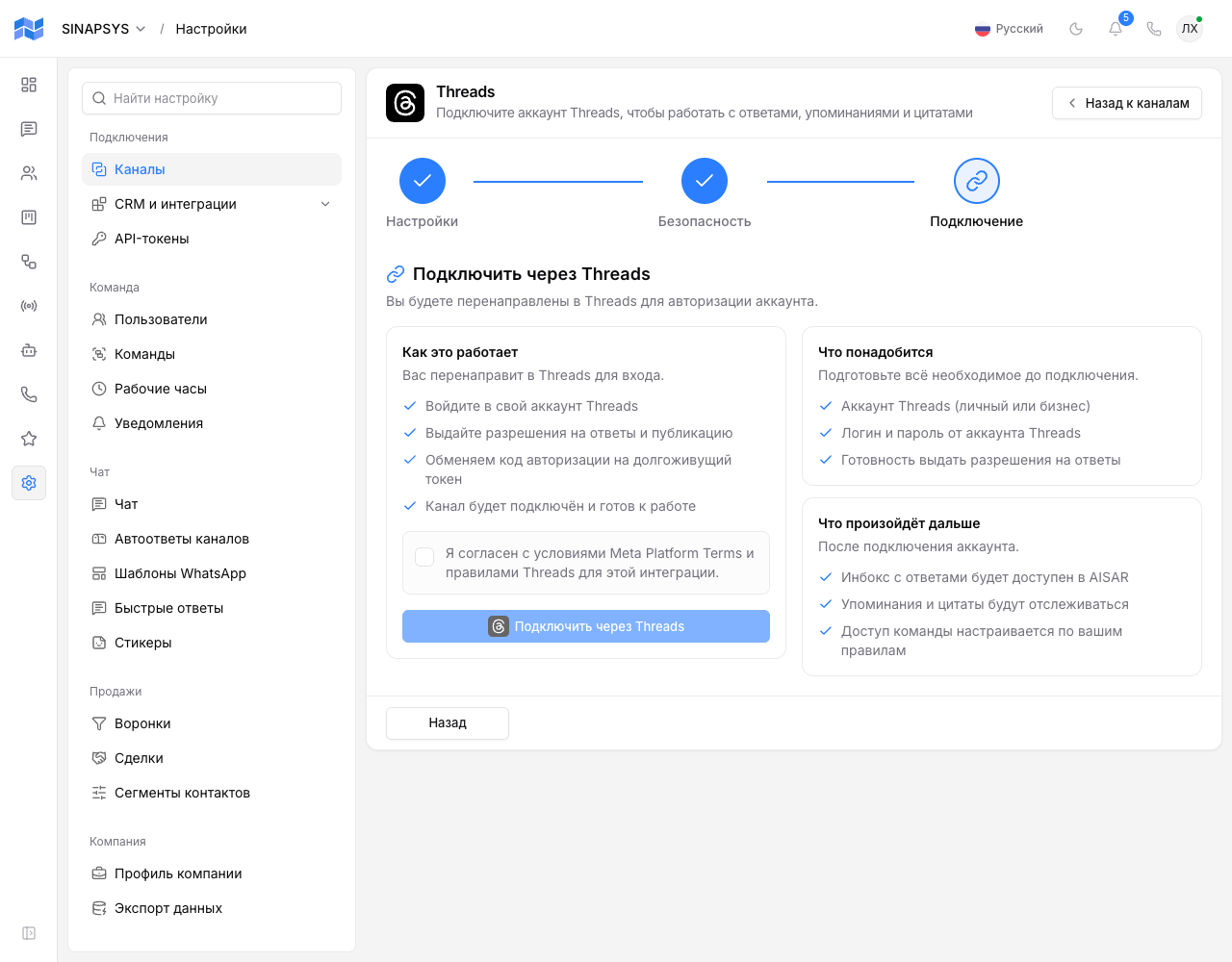
- Agreement with Meta's Platform Terms and Threads' terms of use: the wizard's connect button stays disabled until this checkbox is ticked.
Where to find it
In my.aisar.app open Settings → Channels → Add channel, find the Threads card in the catalog, and click Connect. The channel is marked as beta: the core flow works, but the feature set is still narrower than Instagram Business.
How to connect
- Click Connect on the Threads card. The wizard opens, with three steps: Settings, Security, Connect.
- On the Settings step, enter a Channel name (required), optionally a Description, and pick a Timezone. The company's timezone is filled in by default.
- On the Security step, choose which teams can see the channel and whether it allows automations and inbound handling. There is a broadcasts toggle here as well, but broadcasts don't work over Threads; see the limitations section below.
- On the Connect step, tick the agreement with Meta and Threads terms and click Connect with Threads.
- threads.net opens in a new tab. Sign in to the right Threads account and confirm the requested permissions.
- Threads returns you to AISAR on the "Threads authorization completed" screen: AISAR has obtained a long-lived access token and created the channel. Click Continue to go to the channel list, where the new channel already shows Connected.
What lands in the inbox
- Replies to your posts. Every reply under one post, including replies to replies, is gathered into a single conversation in the Chat section. The conversation is titled with the start of the post's text, so you can see what the thread is about.
- Mentions and quotes. Posts that mention your account or quote your post also arrive in the inbox, grouped around the post they refer to.
- Each message brings its text and the author's Threads username into AISAR. Photos and videos attached to replies are not passed through: open the post in Threads itself to see them.
- Replies, mentions, and quotes arrive from the moment the channel is connected. Earlier discussions are not carried over into AISAR.
What you can send
- Text only, up to 500 characters: that's Threads' own limit. Attachments, reactions, and editing or deleting a sent reply are not available from AISAR.
- A reply sent from AISAR is published on Threads as a public reply in the post's thread, on behalf of the connected account. If you reply to a specific message in the chat (quoting it), the reply goes to that author within the thread; without a quote, it's posted to the post itself.
- You can't message someone privately: Threads has no public API for direct messages.
Access and reconnecting
A Threads access token lasts 60 days, and AISAR renews it automatically shortly before it runs out, so there's no need to sign in again. If access is lost anyway (you changed the password, revoked the app's access in Threads settings, or the token expired before renewal), the channel switches to Expired or Disconnected. Click Reconnect on the channel page and sign in to Threads again. You must sign in to the same account that was connected: AISAR won't accept a different account, so create a separate channel for it. The channel's conversations are kept on reconnect.
How to check the channel is working
Publish a post from the connected Threads account and reply to it from another account. The reply should show up in AISAR's Chat section as its own conversation, titled with the start of the post's text. Answer it from AISAR and check that the answer appears under the post on Threads.
Common issues
| Symptom | Cause and what to do |
|---|---|
| Nothing opened after clicking "Connect with Threads" | The browser blocked the new tab. Allow popups for my.aisar.app and click the button again. |
| "Threads authorization failed" with "No authorization code was received from Threads" | The Threads sign-in was cancelled or the permissions weren't confirmed. Go back to the wizard and run the connection again, confirming all requested permissions. |
| The plan channel limit is reached when trying to connect Threads | Your company's plan caps how many channels can be connected at once. Disconnect an unused channel, or raise the limit with an extra-channel add-on: plan details are on the pricing page. |
| A reply from AISAR wasn't sent | Make sure it's text only, with no attachments, and no longer than 500 characters. If the channel also switched to "Expired", access to the account was revoked: reconnect the channel. |
| An account-mismatch error on reconnect | You signed in to a different Threads account. Sign out of it on threads.net, sign in to the account this channel was connected with, and reconnect again. |
| A customer says they sent a direct message on Threads, but it isn't in AISAR | Threads direct messages don't reach AISAR; they aren't in the public API. Ask the customer to reply under a post or message you on another channel. |
Current version limits
- Broadcasts can't be sent over Threads: a broadcast messages each recipient privately, and Threads has no direct messages in its API.
- You can't start a new conversation with someone: the channel only replies in threads where replies, mentions, or quotes have already come in.
- Publishing new posts from AISAR's inbox isn't supported, only replies.
See also
Threads connects the same way as Instagram Business and Facebook Messenger: a direct sign-in through Meta's official login instead of a QR code. If the channel switched to Expired or Disconnected, see the step-by-step walkthrough in A channel is stuck reconnecting: what to do.