
Who answers the customer: conversation assignment, teams, auto-assignment
When several operators share one inbox, the question is who owns a given conversation. Here are the three levels: manual assignment, auto-assignment of new conversations to a team or an employee, and assignment from an automation. Plus an honest note on what the system does not do yet.
What you need to know
- A conversation has a team and participants. The team answers "which line of business owns this", the participant marked as assignee answers "who is actually handling it".
- Assignment is not an access restriction. Visibility is governed by permissions and access to channels and teams, not by who is assigned.
- Every assignment lands in the conversation history — you can see who assigned it and when, and whether it was automatic.
Level 1. By hand in the conversation
In an open conversation you can add a participant — yourself or a colleague — and remove one when they are no longer needed. That is how a handover works: add whoever continues, then step out yourself.
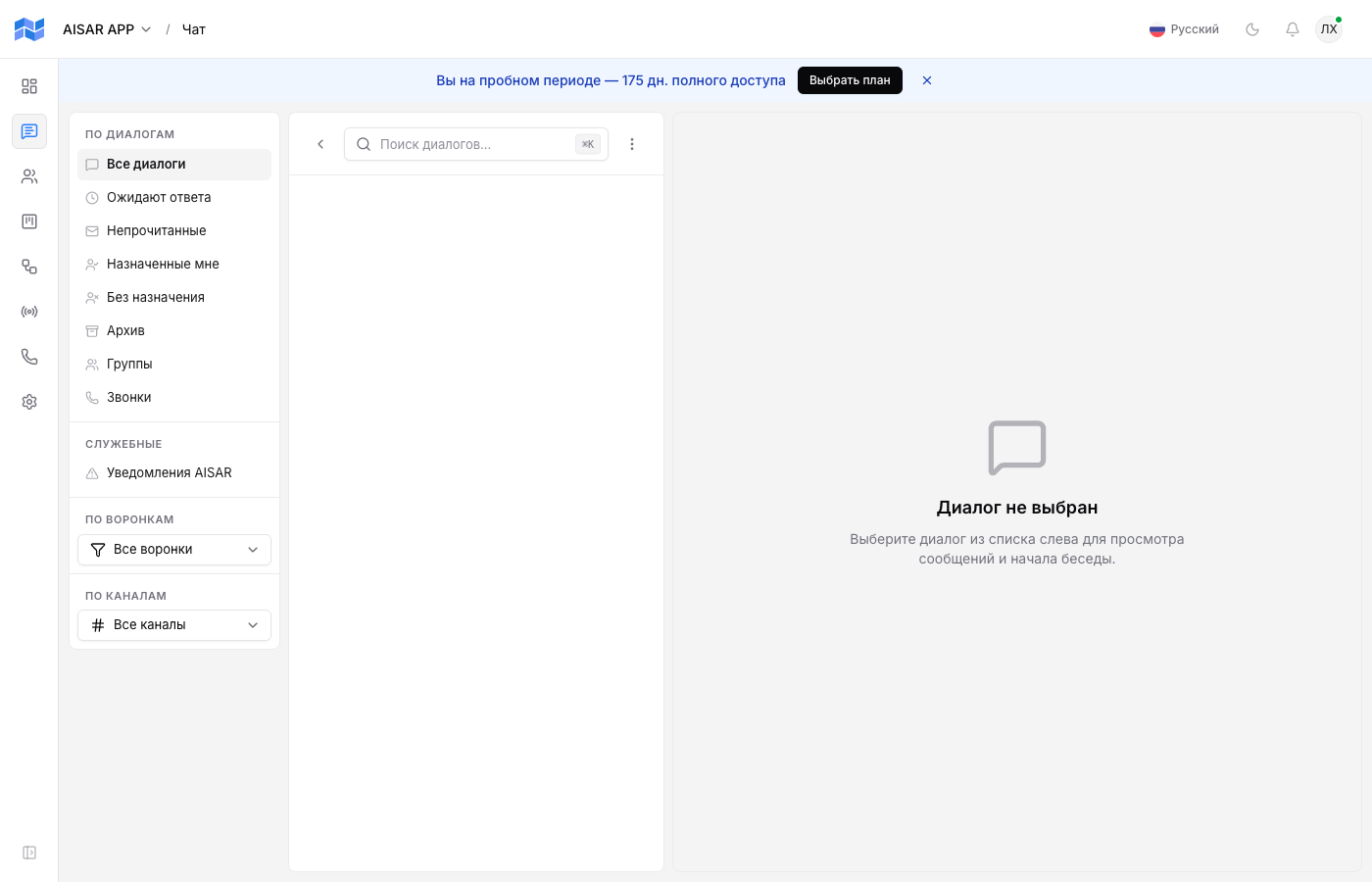
The chat sidebar has the "Assigned to me" and "Unassigned" filters, and companies with teams also get a filter for their team's conversations. "Unassigned" is the most useful at the start of a shift: it holds enquiries nobody has picked up.
Level 2. Auto-assigning new conversations
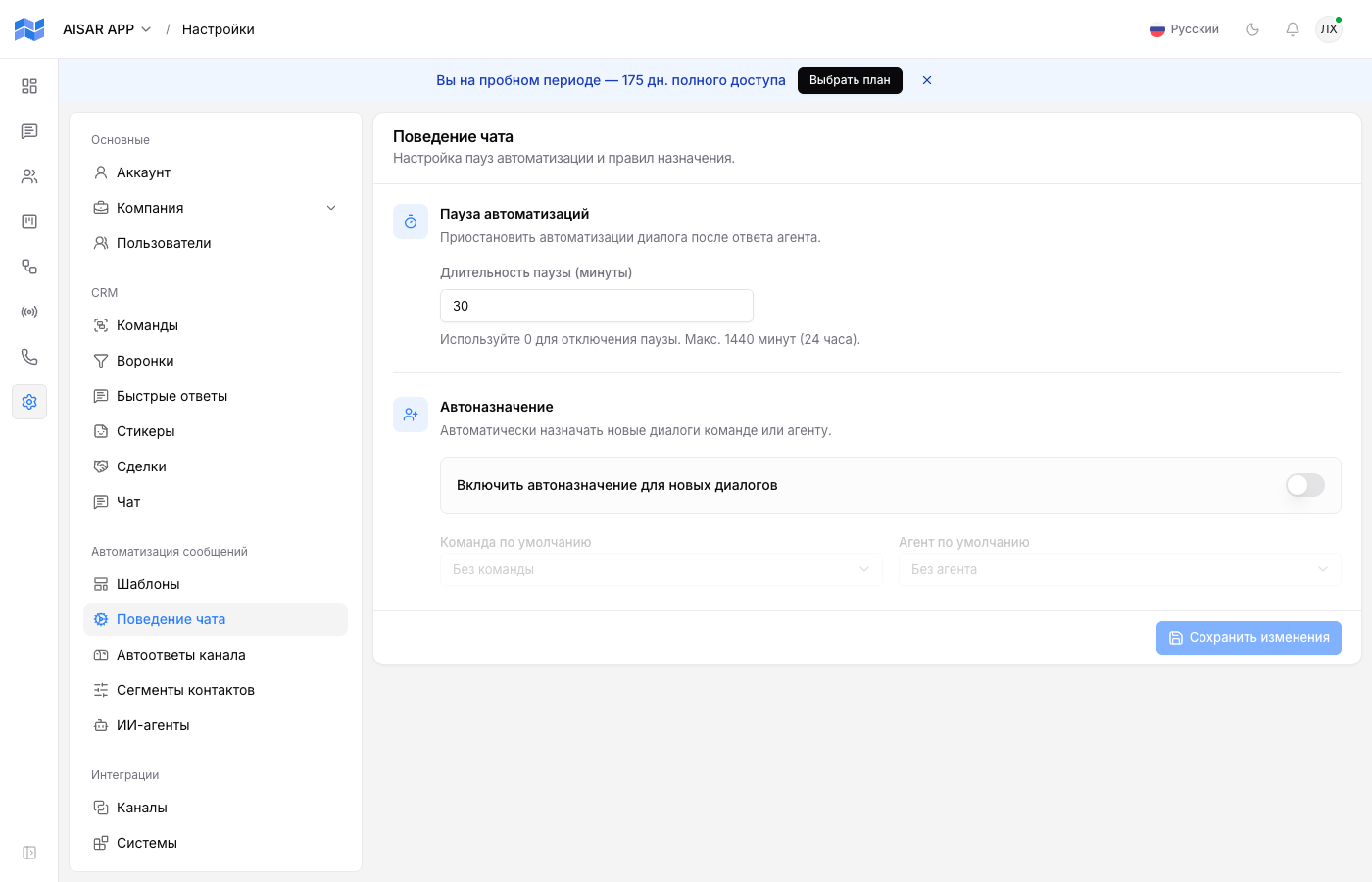
Auto-assignment is switched on in Settings → Message automation → Chat behaviour. You pick a team and/or a specific employee, and every new conversation gets them right away. That settles the "who watches the inbox" question when the company has a single duty team.
So the usual pattern is: auto-assignment puts the conversation on the duty team, and inside the team an operator takes it — by hand, or by replying if auto-adding the responder is enabled.
Level 3. Assignment by rule
When the right owner depends on what the customer wrote, an automation does the assignment. Trigger — inbound message, condition — a keyword, action — assign the conversation to the right team and notify it.
| Scenario action | What it does |
|---|---|
| Assign to team | Sets the conversation team — like auto-assignment, but conditionally. |
| Assign owner | Sets the owner on the contact card. That is about the contact, not about one conversation. |
| Notify team | Tells the team a new enquiry arrived — without it the assignment can go unnoticed. |
What does not exist yet
There is no automatic distribution of conversations across operators in a round-robin, by current load, or by first-response time, and no automatic SLA escalation. If you need an even workload, today it comes from a team agreement rather than a setting.
Setting it up for your team
| Situation | Setup |
|---|---|
| One small team, everyone watches the inbox | Auto-assignment off, work from the "Unassigned" filter, auto-adding the responder on. |
| There is a duty shift | Auto-assign to the duty team; inside the shift an operator takes the conversation. |
| Sales and support are separate | Keyword automations assign to the right team and notify it. |
| The customer has a dedicated manager | An owner on the contact card — by automation or by hand; the conversation still lives in the shared inbox. |
Common issues
| Symptom | Cause and what to do |
|---|---|
| Every new conversation lands on one person | Auto-assignment names a specific employee. Point it at a team instead — there is no round-robin in the system. |
| The conversation is assigned but the person does not know | Assignment alone does not notify. Add the "Notify team" action in the scenario. |
| An operator cannot see their team's conversations | That is permissions, not assignment: check the user's access to channels and teams. |
| The "Unassigned" filter is always empty | Auto-assignment is on — every new conversation immediately gets a team or an assignee. |
See also
Chat filters and day-to-day operator work are in Chat basics. The roles and permissions behind visibility are in Users and roles. Conditional assignment scenarios are in Automations.