
Connecting WhatsApp
AISAR's WhatsApp connector links a regular WhatsApp number the same way WhatsApp Web does: by scanning a QR code or entering a pairing code. Messages from personal and group chats land straight in AISAR, and your team replies from a shared inbox. Here's what to prepare, how to get through the connect wizard, and what to do if the number is protected by a passkey.
What you'll need
- A phone with WhatsApp installed and active on the number you want to connect — scanning the QR code or confirming the pairing code has to happen from that phone.
- The phone reachable on the internet from time to time: just like with WhatsApp Web, the channel relies on WhatsApp's own linked-devices mechanism.
- Access to my.aisar.app and the Settings → Channels section of the right company.
- If a passkey was ever turned on for this number inside WhatsApp itself — the Chrome or Edge browser, for the extra confirmation step (see below).
Where to find it
In my.aisar.app open Settings → Channels, then Add channel — a catalog of the available channel types opens, with category filters (All, Widgets, Messaging, Telephony, Social). Find the WhatsApp card and click Connect.
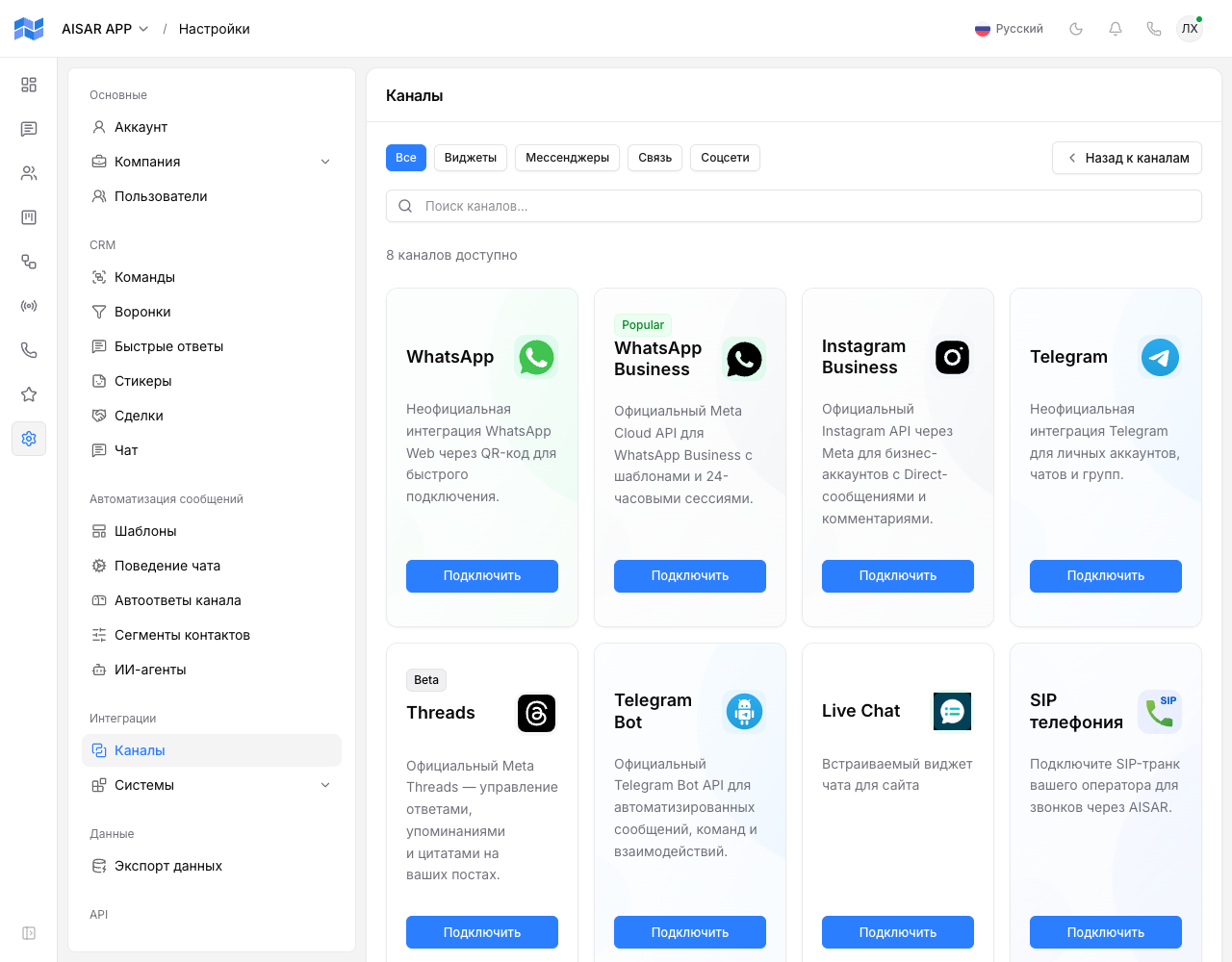
How to connect
- Click Connect on the WhatsApp card — the WhatsApp Connector wizard opens, with three steps: Settings, Security, Connect.
- On the Settings step, enter a Channel name (required), optionally a Description, pick a Timezone, turn on Set status online if you want the channel marked online right after it connects, and configure Call handling — Ignore, Reject, or Reject with a message, for calls that come in to this WhatsApp number.
- On the Security step, choose which teams can see this channel, and whether it allows broadcasts, automations, and inbound message handling.
- On the Connect step, pick a method: QR code (the default) or Pairing code by phone number.
- For the QR code, click Generate QR code, then on your phone open WhatsApp → Settings → Linked devices → Link a device and point the camera at it.
- For a pairing code, enter the phone number, click Request pairing code, and enter the resulting 8-character code the same way: Linked devices → Link a device → Link with phone number instead.
- If the number is protected by a WhatsApp passkey, the wizard shows an extra "Confirm with a passkey" step on its own — walk through it using Connecting WhatsApp with a passkey.
- As soon as the phone confirms the link, the status switches to Connected, and the wizard shows a confirmation screen: "Device linked" and "Sync initiated".
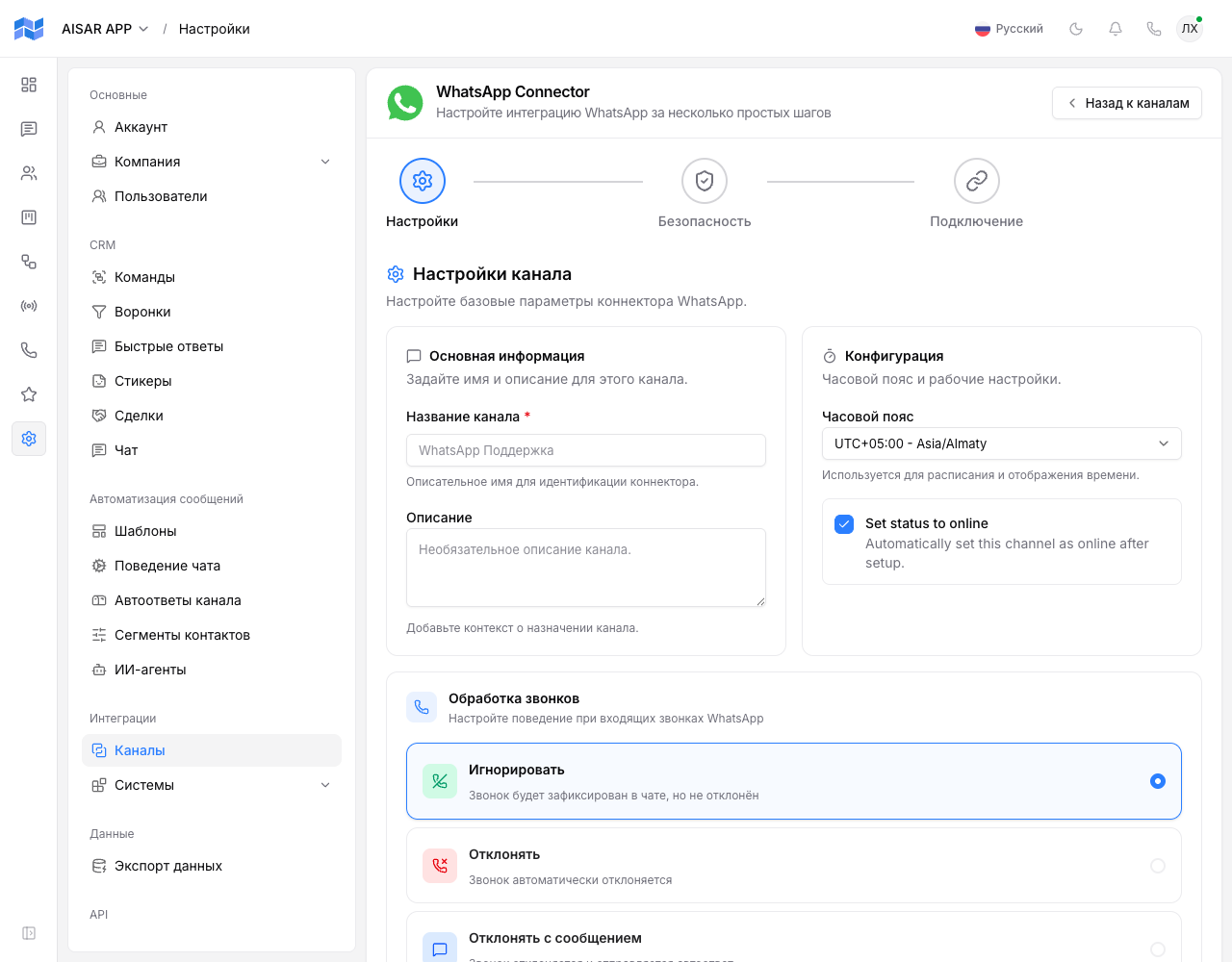
How to check the channel is working
In the channel list (Settings → Channels), WhatsApp shows the Connected status. Send a test message to the linked number from another phone — it should show up in AISAR's Chat section within a few seconds, and a reply sent from AISAR should reach the other side.
Common issues
| Symptom | Cause and what to do |
|---|---|
| The QR code expired, or scanning shows "Too Many Attempts" | Close other open my.aisar.app tabs, wait a minute, and click "Generate QR code" again. |
| The number is passkey-protected, the plain QR scan doesn't confirm | This is WhatsApp's own protection, not an AISAR error — complete the "Confirm with a passkey" step; see the "Connecting WhatsApp with a passkey" guide for details. |
| The channel connected but disconnected again shortly after | On your phone, open WhatsApp → Settings → Linked devices and check the AISAR session is still there — it may have been removed manually or because the phone stayed offline too long. Reconnect the channel. |
| The wizard says the channel limit is reached | Your company's plan caps how many channels can be connected at once. Disconnect an unused channel, or raise the limit with an extra-channel add-on in Billing. |
| Incoming calls to this number get in the way | On the Settings step, choose Reject or Reject with a message under Call handling — AISAR declines the call automatically, optionally with an auto-reply. |
| There is no "Answer" option under Call handling — only Ignore, Reject, and Reject with a message | This channel is connected through a mode that doesn't carry voice calls in AISAR yet — this happens on some longer-connected numbers. It doesn't mean AISAR can't receive calls over regular WhatsApp at all — it can, and a share of channels already support it. To enable call receiving on this particular channel, contact AISAR support — it isn't a self-service toggle in the wizard. |
See also
Need official message templates, several agents without a device-count limit, and no need to keep a phone always online? See Connecting WhatsApp Business (WABA). Not sure which of the two you need — the comparison is at aisar.app/guides/whatsapp-vs-waba. Channel features and pricing are on aisar.app/en/channels/whatsapp.