
Google Sheets: connecting and scenario blocks
How to connect a Google account to AISAR, add spreadsheets and set up the "Add row", "Find row" and "Update row" blocks in scenarios.
What the integration gives you
AISAR scenarios write leads from messengers into your Google spreadsheet on their own, find a customer in it by phone and change cells such as a status. No more keeping the spreadsheet by hand or through third-party services. Overview on the website: aisar.app/en/integrations/google-sheets.
The Google Sheets blocks are available on plans that include scenarios. Plan details: aisar.app/#pricing. The integration is not available in AISAR Kids.
Who can connect
- Connecting and disconnecting Google accounts, adding and removing spreadsheets is for the company administrator. This permission cannot be given in a custom role. Everyone else sees the hint "Ask an administrator with the integrations permission to connect Google Sheets".
- Choosing a spreadsheet in scenario blocks is open to anyone who edits scenarios. They see only the spreadsheets the administrator has already added in the settings.
- Choose from Google Drive works only for the person who connected that account: the Google window opens with their access. Another administrator can create a new spreadsheet in this account or connect their own.
Step 1. Connect a Google account
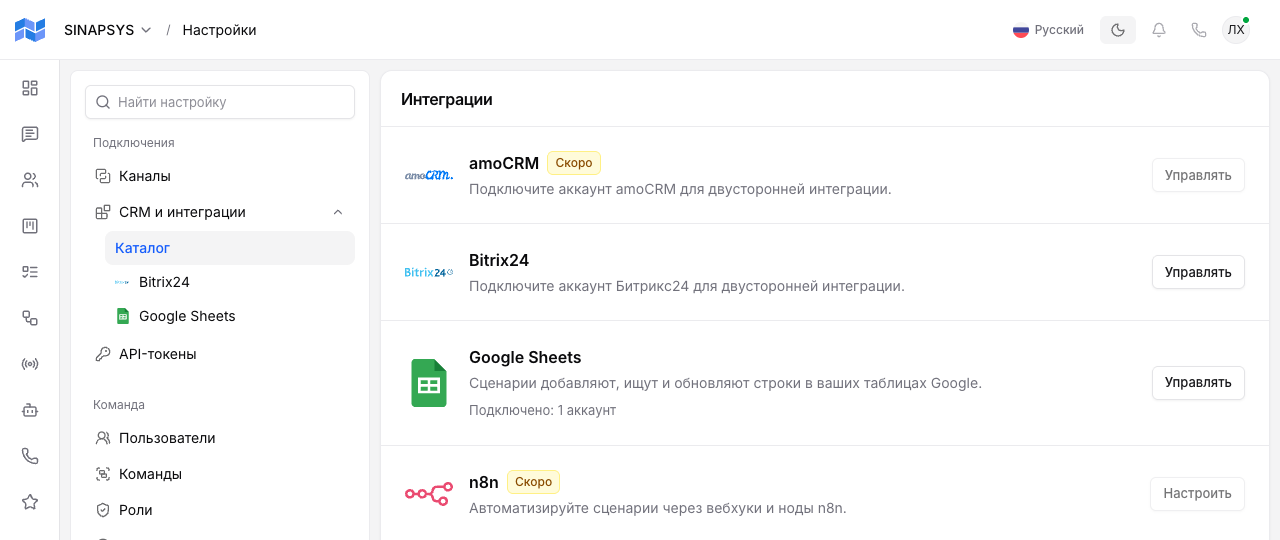
- In my.aisar.app open Settings → CRM and integrations → Catalog and click "Setup" on the Google Sheets card. Once an account is connected, the button reads "Manage", and a separate Google Sheets item appears under "CRM and integrations" in the settings menu.
- The Google Sheets page lists what scenarios will be able to do, and the "How it works" button opens this article. Click "Connect Google". The Google sign-in window opens: pick the account whose Google Drive will hold the spreadsheets.
- On the Google permissions screen, tick the Google Drive files item (or "Select all") and click "Continue".
- Google sends you back to AISAR, where you see "Google Sheets connected". Click "Go to spreadsheets".
You can connect several accounts with "Connect another account": say, one for the sales team and one for the school. One Google account works with only one company in AISAR. If it is already connected to another company, you see "This Google account is already connected to another company": pick another account or disconnect this one there first.
Step 2. Add spreadsheets
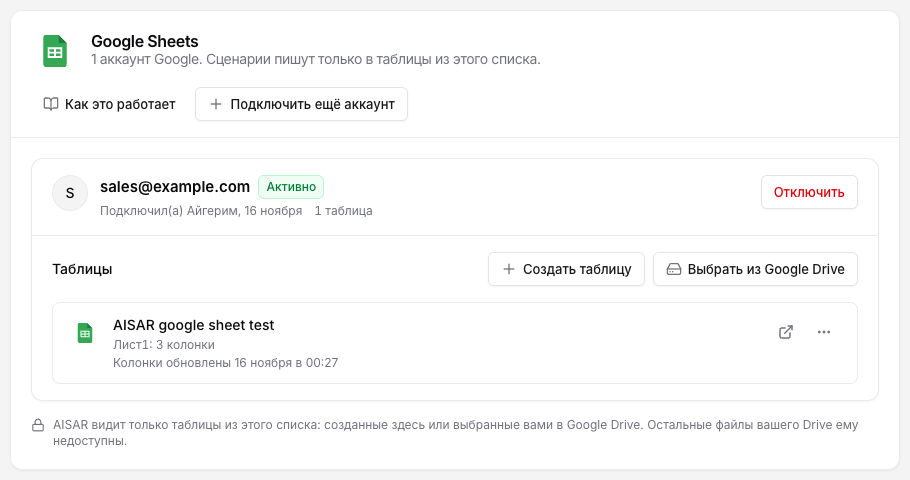
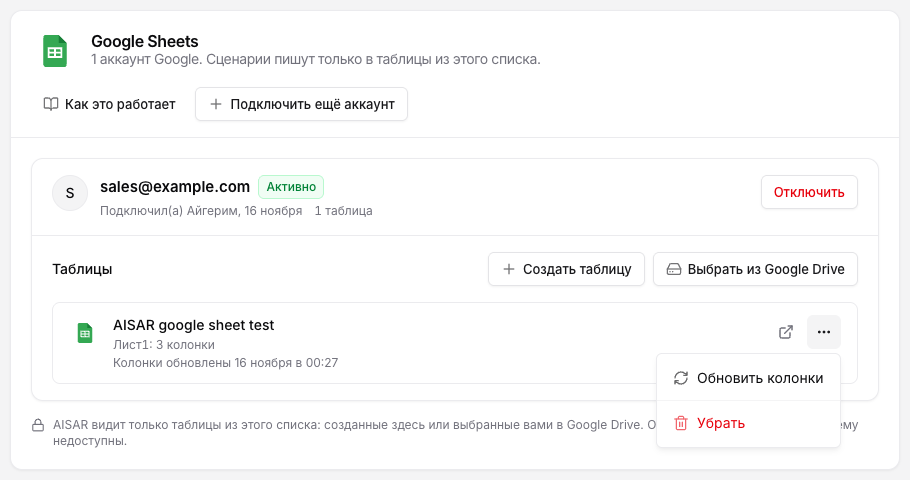
AISAR does not see your whole Google Drive, and the hint at the bottom of the page says so: "AISAR sees only the spreadsheets in this list". Scenarios work only with the spreadsheets in the "Spreadsheets" list under the account, and a spreadsheet gets there in one of two ways.
Create spreadsheet
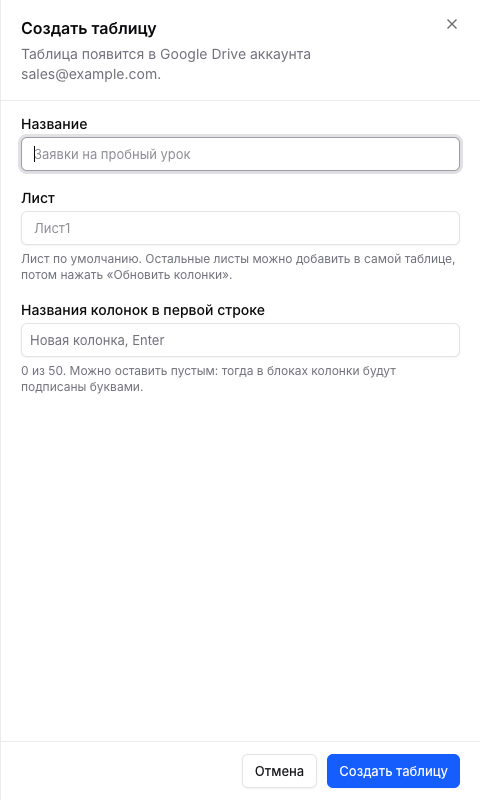
- Click "Create spreadsheet".
- Enter the "Name", for example "Trial lesson requests", and optionally the "Sheet" (Sheet1 by default).
- In "Column names in the first row" type the headers one by one, pressing Enter after each: Name, Phone, Channel, Status. Up to 50 columns. You may leave it empty, then blocks name the columns by letter.
- Click "Create spreadsheet". The file appears in the Google Drive of the connected account and goes straight into the list.
Choose from Google Drive
If the spreadsheet already exists, click "Choose from Google Drive". A Google window with your files opens: pick the spreadsheet, and AISAR loads its sheets and column names. The window is a pop-up served from apis.google.com, so an ad blocker or blocked pop-ups can get in its way.
AISAR takes the column names from the first row of each sheet. Each spreadsheet in the list shows its sheets with the number of columns and when the columns were last updated. On the right of the row there are two buttons: the arrow icon "Open in Google" opens the file, and the "…" menu holds two items. "Update columns" is for when you added a sheet or renamed columns in the spreadsheet itself. "Remove" takes the spreadsheet out of AISAR after a confirmation, while the file stays in Google Drive. One account can hold up to 50 spreadsheets.
Step 3. Blocks in a scenario
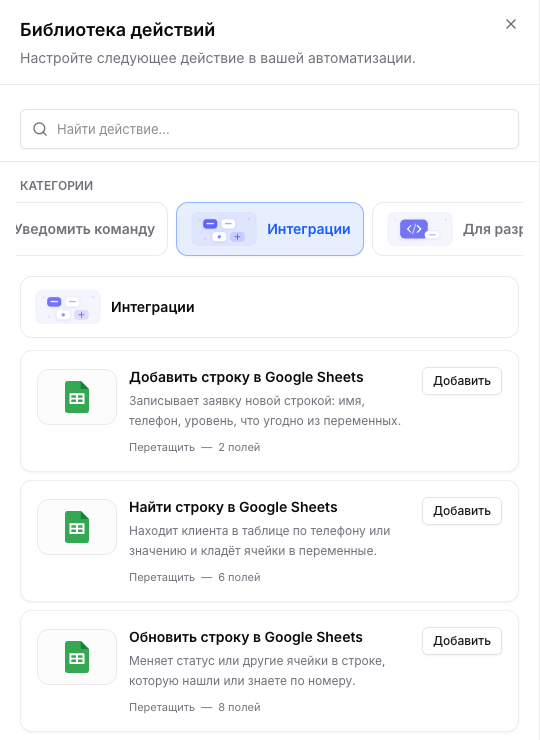
In the scenario editor click "Add action": the blocks are in the "Action library", in the "Integrations" category. All three start the same way: "Google account", "Spreadsheet", "Sheet". Next to the spreadsheet there is an "Open in Google" link, and the section header has a "Google Sheets settings" link. Columns are shown with the letter and the name from the first row, like "C: Phone". If nothing is connected yet, the block offers "Open settings", and the scenario is kept as a draft.
Values take variables the same way as message text: {{contact.name}}, {{contact.phone}}, {{vars.name}} and others, see Variables, constants and buttons in scenarios. Every block has a "Failed" exit: the scenario takes it on a Google error, lost access or a deleted spreadsheet.
"Add row to Google Sheets"
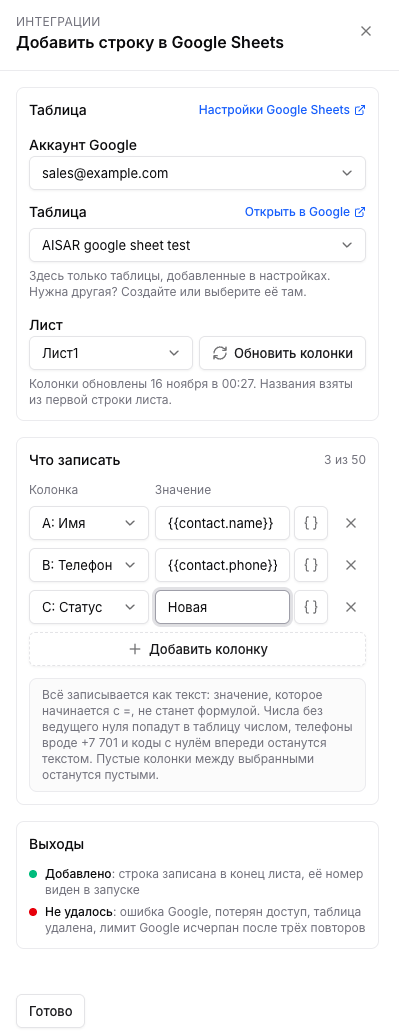
Writes a new row at the end of the sheet. Under "What to write" click "Add column", pick the "Column" and fill in the "Value": text, a variable or a mix. Up to 50 columns, a value up to 2000 characters. Columns between the chosen ones stay empty. Exits: "Added" (the new row number shows in the run) and "Failed".
Example: leads from a messenger. The scenario starts on a new conversation, the "Ask and save" block asks which course the client wants and stores the answer in course. Then "Add row":
| Column | Value |
|---|---|
| A: Name | {{contact.name}} |
| B: Phone | {{contact.phone}} |
| C: Course | {{vars.course}} |
| D: Status | New |
"Find row in Google Sheets"
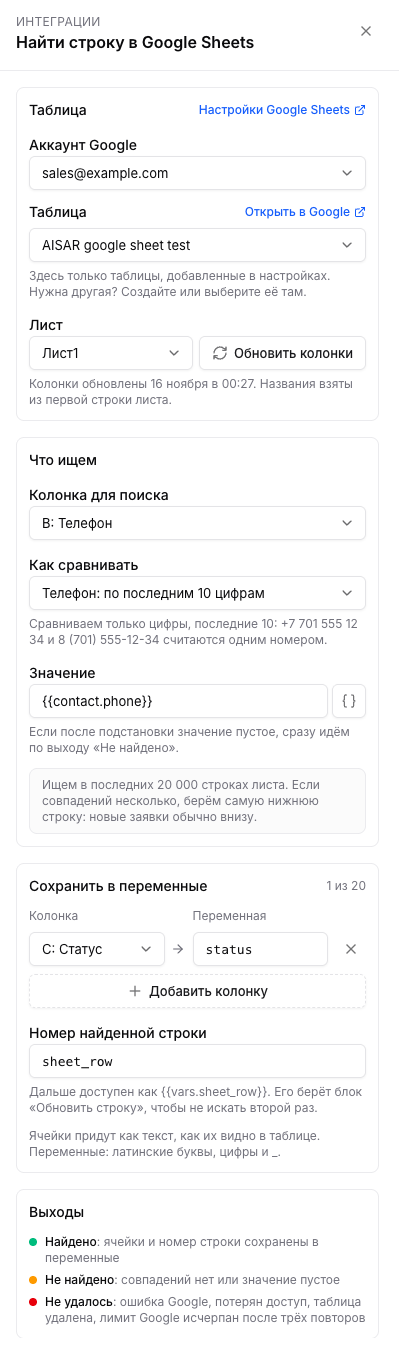
Looks for a row by a value in one column and saves the cells of the found row to variables. Settings:
- "Column to search" and "Value", usually a variable. If the value is empty after the variables are put in, the block takes the "Not found" exit at once.
- "How to compare": "Matches the value" (case and spaces at the edges are ignored) or "Phone: by the last 10 digits". With the second, +7 701 555 12 34 and 8 (701) 555-12-34 count as one number.
- "Save to variables": which column goes to which variable. Names use latin letters, digits and
_, up to 20 variables. Cells come as text, the way the spreadsheet shows them. - "Number of the found row": a variable,
sheet_rowby default. After that the number is available as{{vars.sheet_row}}.
The search covers the last 20,000 rows of the sheet. With several matches the lowest row wins: new leads are usually at the bottom. Exits: "Found", "Not found", "Failed".
Example: a client writes "when is my lesson?". The block looks in column "B: Phone" for {{contact.phone}} in "Phone" mode and saves column "E: Booking date" into the lesson_date variable. The "Found" exit leads to the message "You are booked for {{vars.lesson_date}}", the "Not found" exit to "We could not find your booking, a manager will join shortly" plus an assignment to an employee.
"Update row in Google Sheets"
Changes the chosen cells in one row and leaves the other cells alone. "Which row to update" has two tabs:
- "Number from a variable": the "Row number" field usually holds
{{vars.sheet_row}}from the "Find row" block. The number may come only from variables of earlier steps, not from the trigger data, and must be 2 or more: the first row holds the column names. An empty or non-numeric number leads to the "Failed" exit. - "Find by column" (selected by default): the search runs inside this block, with the same settings as "Find row". This tab also has the "Not found: add a row" switch, off by default. When it is on and there is no row, the block adds a new one with these values and takes the "Updated" exit.
Below, under "What to write", pick the columns and values. Exits: "Updated" and "Failed", plus "Not found" when the row is looked up by column.
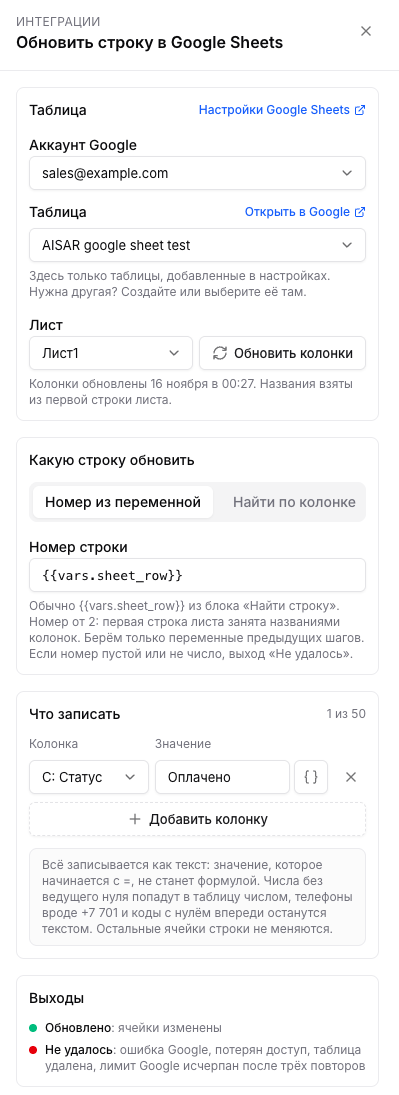
Example: a manager confirmed the payment and tagged the client "Paid". A scenario that starts on a contact tag change runs "Update row" with a lookup on "B: Phone" = {{contact.phone}} in "Phone" mode and writes "Paid" into "D: Status". If the scenario already had a "Find row" block before, the number {{vars.sheet_row}} is enough, no second search is needed.
Good to know
- Formulas are not run. Everything is written as text: a value starting with
=stays a string in the spreadsheet and does not become a formula. Numbers without a leading zero go in as numbers, while phones like +7 701 and codes with a leading zero stay text. - Google limits. Google caps the number of spreadsheet requests per minute, and AISAR keeps its pace below that cap. When too many leads arrive at once or Google is briefly unavailable, the step does not fail: it waits and retries after 30 seconds, 2 minutes and 10 minutes. You can see this in the scenario run. If the third retry fails too, the step takes the "Failed" exit. If you keep hitting the limit, spread the scenarios over different spreadsheets or accounts.
- No answer in time. If Google did not answer a row write within 10 seconds, AISAR does not know whether the row was written and does not retry, so as not to make a duplicate. The step takes "Failed" with the reason "Google did not answer in time". Check the end of the sheet before adding the lead by hand.
- The spreadsheet was deleted. The step takes "Failed" with the reason "Spreadsheet deleted". Restore the file from the Google Drive trash or choose another spreadsheet in the block.
- Access to the file was closed. If the owner removed access or the file was moved, the reason is "Google closed access to the spreadsheet". Choose the spreadsheet again with "Choose from Google Drive".
- A sheet was deleted. The reason is "Sheet not found". Choose the sheet in the block again.
- Access to the account was revoked. If the Google account password was changed or access for AISAR was revoked, the account shows "Access lost" in the settings, and steps with its spreadsheets take the "Failed" exit. Click "Reconnect" and sign in with the same account: the spreadsheets and block settings stay.
Disconnecting
"Disconnect" on the account revokes AISAR access at Google and removes the account together with its spreadsheets from AISAR. The spreadsheets themselves stay in Google Drive, nobody touches them. The confirmation window shows how many scenarios write to this account's spreadsheets: after "Yes, disconnect" their Google Sheets steps take the "Failed" exit. If you connect the account again later, you will need to add the spreadsheets again and pick them in the blocks.
To remove a single spreadsheet, open its "…" menu, choose "Remove" and confirm with "Remove". Blocks where it is chosen take the "Failed" exit until another spreadsheet is chosen in them.
Common issues and fixes
| What you see | What to do |
|---|---|
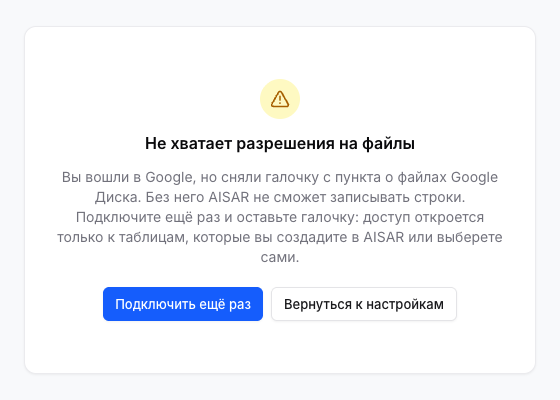
| "The permission for files is missing" | The Google Drive files item was unticked on the Google consent screen. Click "Connect again" and keep the tick (or tick "Select all"). |
| "The connection link has expired" | More than 15 minutes passed since the connection started, or the Google window was opened from an old tab. Click "Start again" and go through the Google sign-in without long breaks. |
| "You did not give permission" | "Cancel" was pressed in the Google window. Connect the account again and press "Continue". |
| The spreadsheet is not in the block list | The block lists only the spreadsheets added in the settings under the chosen account. Check that the right "Google account" is selected and add the spreadsheet with "Create spreadsheet" or "Choose from Google Drive". Files from Google Drive do not show up in AISAR on their own. |
| Choose from Google Drive is missing or does nothing | Only the person who connected the account can choose from Google Drive. If that is you, allow pop-ups and check that a blocker is not cutting off apis.google.com. |
| A new sheet or column is missing in the block | Click "Update columns" in the block or in the "…" menu of the spreadsheet in the settings: AISAR rereads the sheets and the first row. |
| "This account already has 50 spreadsheets in AISAR" | Remove a spreadsheet you do not use or connect another account. |
See also
How scenarios work: Automations. Variables and the "Ask and save" block: Variables, constants and buttons in scenarios. Integration overview: aisar.app/en/integrations/google-sheets.