
Holidays and days off: when the company is closed
On New Year the customer writes and the system thinks you are on duty: response timers tick, no auto-reply goes out, the AI employee answers as on any Tuesday. Here is how to turn on the public holidays of your country, make a single holiday a working day, add your own dates, and what exactly reacts to them.
What you need to know
- The holiday calendar is part of the company working hours: it complements the weekly schedule, it does not replace it. It is set up on the same page.
- The holiday country comes from the company profile. The reference covers Kazakhstan, Kyrgyzstan and Russia, including transferred days off.
- You can adjust holidays with no code and no support ticket: a single holiday can be made a working day, and any dates of your own can be added by hand.
Step 1. Open the page and turn holidays on
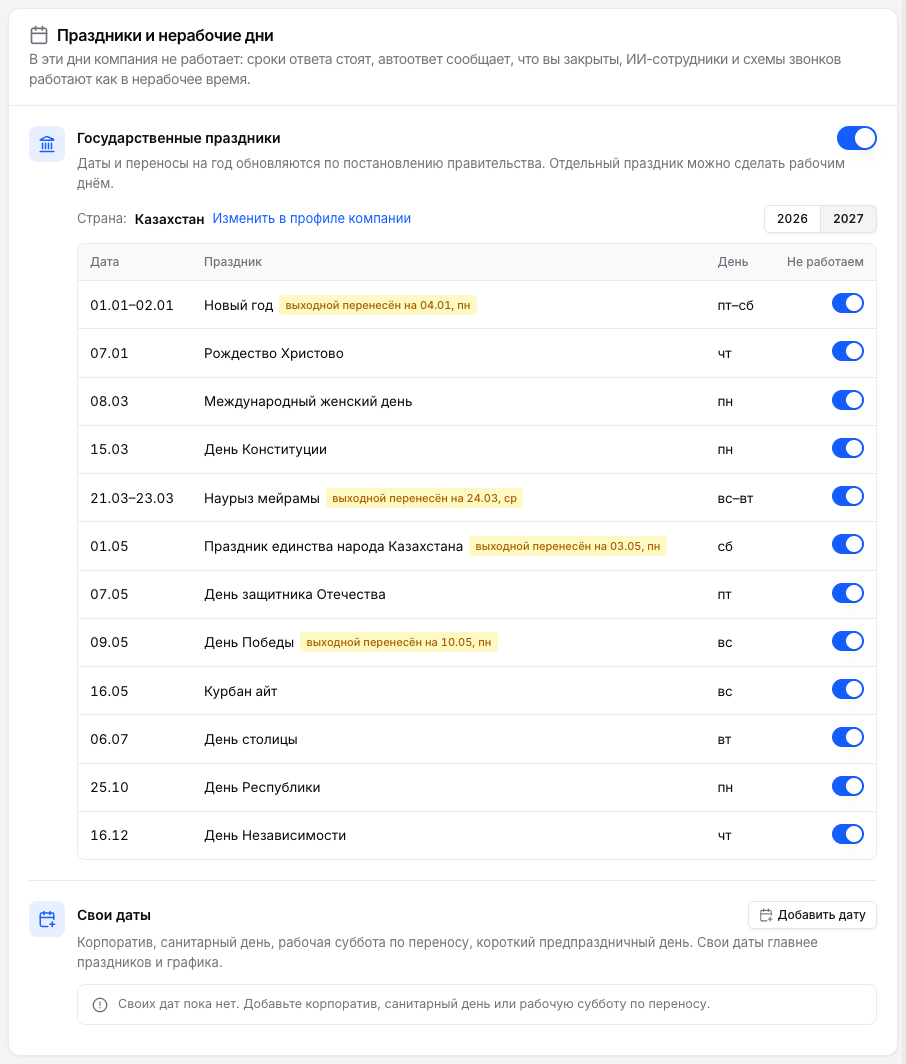
Open Settings → Team → Working hours. Below the weekly schedule is the "Holidays and days off" card. Its "Respect public holidays" switch turns the reference on, and the company country is shown under it.
You can page through the years. Next to a holiday name there are hints: "transferred day off", "working day by transfer" (for example, a working Saturday), "shorter by 1 h" for a shortened pre-holiday day. If the chosen year has no dates yet, the page says they are not published.
Step 2. Make a single holiday a working day
Every date in the table has a "Closed" switch. Turn it off if the company works on that holiday: the date stays in the list marked "not applied" and the day follows the usual weekly schedule. Other holidays keep working.
A transferred day off behaves the same way: its switch closes or opens the whole day together with the holiday it was moved from.
Step 3. Add your own dates
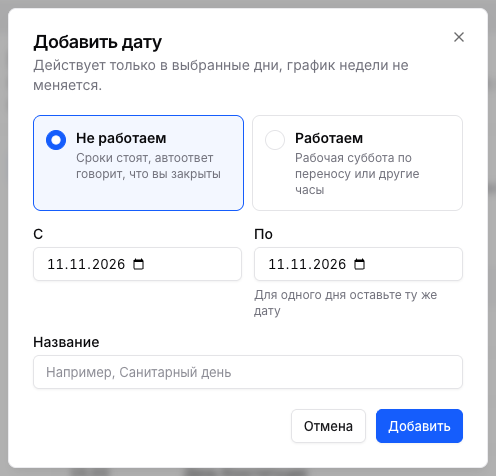
The "Own dates" block covers everything the public calendar does not: a corporate event, a cleaning day, a working Saturday by transfer, a short day before a holiday. Click "Add date" and choose what happens on those days:
| Option | What it means |
|---|---|
| Closed | The company is closed all day, even if the weekly schedule says it is a working day. |
| Open | The company works the hours you set (start and end), even if the schedule says it is a day off or a holiday. |
- A date can be a range: the "From" and "To" fields. For a single day keep the same date in "To". A range is at most 62 days; split a longer one in two.
- Every date needs a name so colleagues understand why it was added. You can have up to 200 own dates.
- Own dates may not overlap each other, but may overlap public holidays: an own date wins over both the holiday and the weekly schedule.
Holidays, exclusions and own dates are saved with the single "Save schedule" button together with the weekly schedule.
What reacts to it
A closed date (a holiday or an own "Closed" date) is the same as non-working time for the platform. Everything that reads the company schedule sees it:
| What | How it reacts |
|---|---|
| Response times (SLA) | On a closed day the countdown stands still and resumes on the next working day. Timers are recalculated right after the schedule is saved. |
| "We are closed" auto-reply | The out-of-hours message goes out on a holiday too. More: Working hours and auto-replies. |
| AI employees | They follow the company schedule: on a closed day they answer as outside working hours. The employee switch "Work all day on company holidays and days off" keeps them on both on a holiday and on an own "Closed" day. An AI employee with its own schedule does not depend on the company calendar. |
| Call schemes | "Schedule" nodes set to "by company working hours" behave as outside working hours on a closed day. Nodes with their own intervals ignore holidays: their hours are set by hand. |
| Round-robin conversation distribution | On a closed day, with the "Wait for the start of the working day" setting, new conversations pile up in the queue and are handed out in the first minute of the next working day. More: Round-robin conversation distribution. |
| Callbacks and appointments | The callback queue and "call back during working hours" move the call to the next working day, and appointment booking does not offer closed dates. |
How the reference is updated
The reference for Kazakhstan, Kyrgyzstan and Russia is updated once a year from official acts and includes transferred days off. Holiday names are stored in Russian. Dates the state has not approved yet appear in the calendar after publication; until then the page notes that the year has no dates. Own dates cover the gap.
Your country is not in the reference? Add the dates you need under "Own dates", and we will add the country on request to support.
Common issues
| Symptom | Cause and what to do |
|---|---|
| No "we are closed" auto-reply on a holiday | Check that the public-holidays switch is on, the country is set in the profile, and the date's "Closed" switch is not off. The out-of-hours message must be on in the auto-replies. |
| The holiday list is empty | The company country is not set, or the chosen year has no dates yet. The country is changed in the company profile. |
| The call scheme still connects to an operator on a holiday | The "Schedule" node uses its own intervals. Switch it to "by company working hours" or add the holiday to its intervals. |
| The cabinet rejects an own date | Check the name (up to 60 characters), that the range is at most 62 days and does not overlap another own date, and that a working date ends after it starts. |